Using an online passport photo tool without losing control
Follow the image through the whole workflow: where the source starts, which operation runs in the browser, what is sent to a server, whether a project saves it, where the export lands and who receives the submission. Browser processing can reduce transfer for one operation, but it does not mean zero storage.
Follow the photo for one minute
Imagine the file moving from phone camera → browser or server → project feature → downloaded export → government portal. Every arrow is a place to ask who can access the image and how long the copy remains.
| Stage | What can happen | Question to check |
|---|---|---|
| Original photo | A camera file stays on the phone or is selected from a folder | Is this the original, and who else can access the device? |
| Editing session | Pixels are processed in browser code or sent to a remote endpoint | Which exact operation runs where? |
| Saved project | A session can persist in browser storage or an account project | Is saving optional, temporary or tied to an account? |
| Export | A new file is written to downloads, cloud sync or a shared folder | Where is the output stored after download? |
| Support request | A user can send an error, screenshot or image | What is the smallest useful diagnostic? |
| Government submission | The selected authority receives the final application file | Is the upload route the official one? |
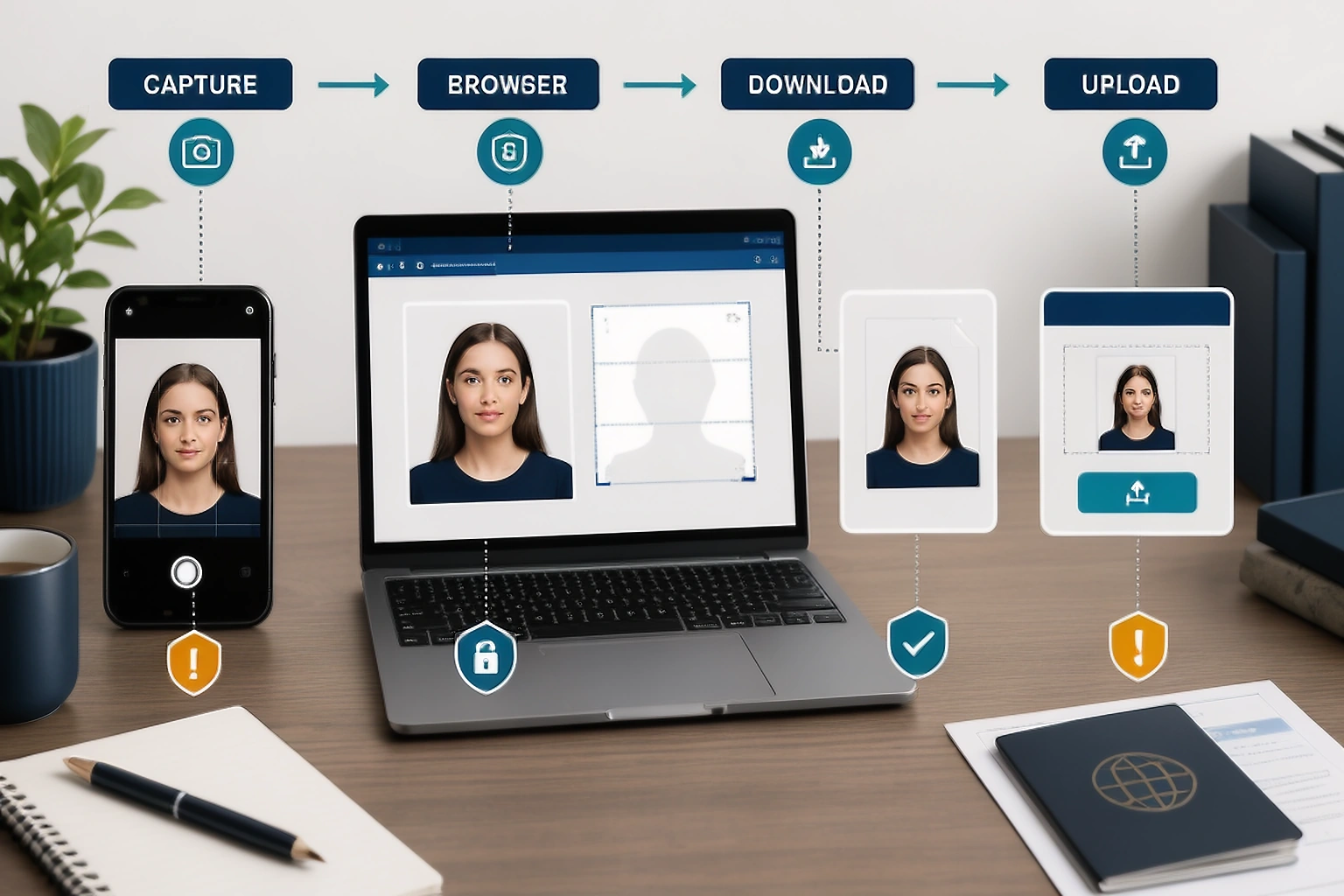
Extra copies appear quietly
One upload can become a browser session, a saved project, a downloaded export, a cloud backup and a message attachment. Reduce movement: use the original for the one task that needs it, keep the final export in one controlled folder and remove abandoned versions when the product gives you a deletion control.
- Download only the version you plan to submit.
- Avoid messaging apps and shared folders for working copies.
- Remove older exports after the application has the right file.
- Keep one applicant’s files separate from another’s.
A personal photo is not automatically biometric data
A face photo relates to an identifiable person, so it deserves personal information protection. The UK ICO explains that biometric data is personal data resulting from specific technical processing of physical, physiological or behavioural characteristics that allows or confirms unique identification. A simple resize, crop or compression step is different from extracting a facial template for recognition.
| Operation | What it does | Privacy question |
|---|---|---|
| Resize, crop or compress | Changes presentation or file storage | Does the image remain in the browser or move to a service? |
| Face detection | Locates or measures a face for a visible check | Is the result kept, and is it used only for this session? |
| Feature extraction | Creates a representation of facial characteristics | Is it used to identify or verify a person? |
| Face recognition | Compares a face with another reference to identify or verify | What lawful, transparent and secure basis supports that use? |
Audit the copies you create
Privacy is not only a server question. Your own download folder, messaging history and cloud backup can preserve the portrait after the website session ends.
- Remove downloads for older versions when the final file is confirmed.
- Avoid making messaging app or personal cloud copies just to move the image between devices.
- Use the product’s project deletion control for abandoned versions when that control exists.
- Keep only the source or final export that the application still needs.
What “processed in the browser” really means
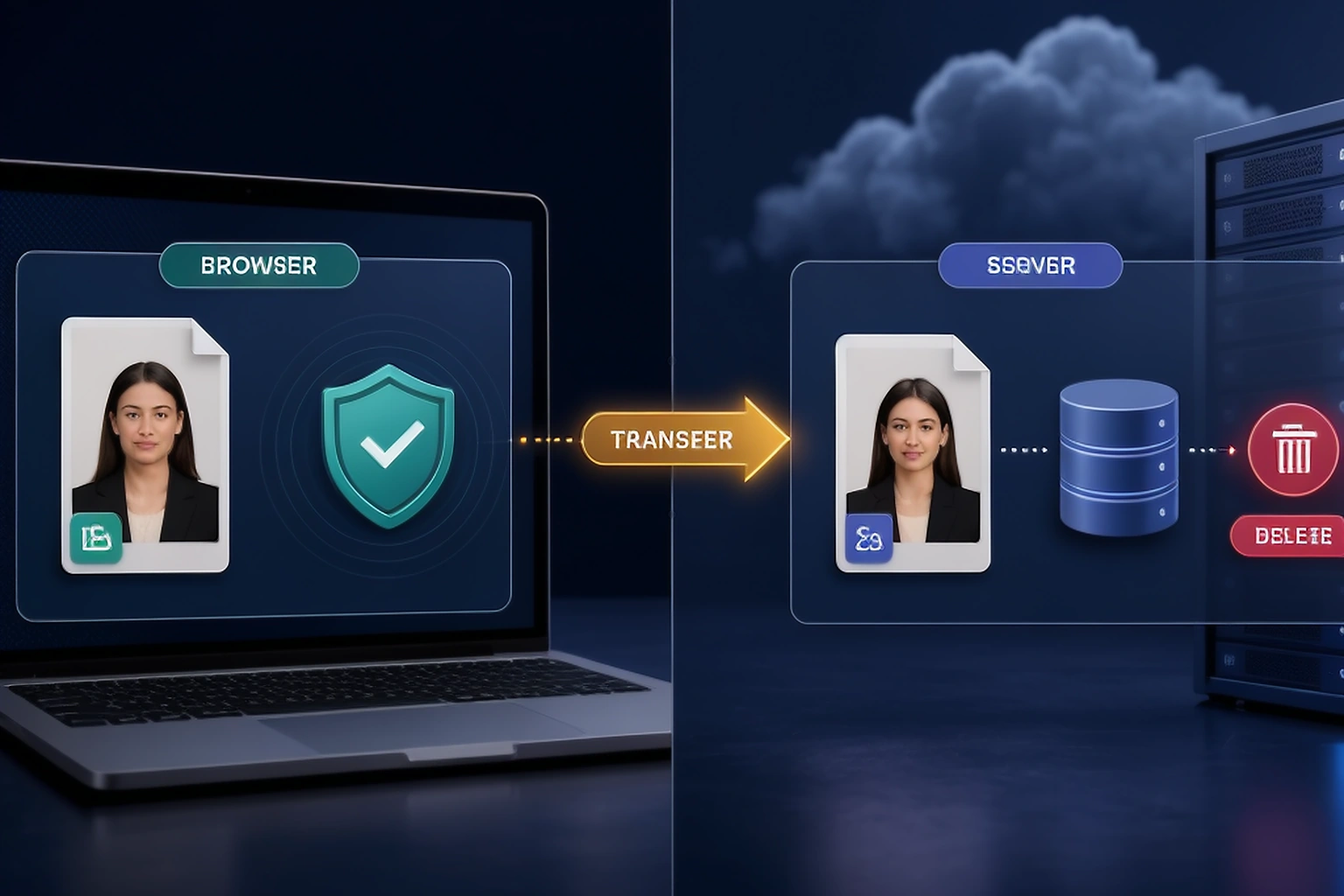
Browser processing means the current page performs an operation with code running in your browser. For PassportPhotoBox, background removal can use a WebAssembly or ONNX processing path in the browser before a server fallback. Official and creative editor sessions persist locally in IndexedDB, with fallback storage in the browser, while creative generation sends the edited input to /api/ai-generate.
| Path | What it can reduce | What it does not answer |
|---|---|---|
| Processing in the browser | Transfer to a remote service for that operation | Whether the browser stores a session or the user downloads a copy |
| Processing on the server | Local device processing work | How the provider stores, retains or deletes the uploaded image |
| Account/project storage | Repeated uploads and setup work | Whether older versions and backups have separate lifecycles |
“Local” should be feature specific
A privacy label should answer “local for which action?” The answer can differ between a checker, a background operation, an editor session and a creative AI generation feature. A product page should not imply that a local browser step means the entire workflow is offline. Before upload, look for a short explanation near the exact control and read the feature notice when the transfer path is unclear.
Useful privacy wording is specific
“Secure”, “private” and “processed locally” are too broad by themselves. Useful wording identifies the file, operation, destination and retention event a user needs to understand.
| Vague wording | More useful wording |
|---|---|
| Your photo is secure | This page stores the current editor session in browser storage; check the privacy notice for account features |
| Processed locally | The background cutout first runs in the browser; a fallback request can occur if the local model cannot run |
| We delete your image | Project deletion removes the visible project; payment, security or backup records can follow separate retention rules |
| Privacy during AI processing | Creative generation sends the edited input to the named AI endpoint; official mode blocks that action |
Retention needs a period and a trigger
“We keep it briefly” is not a retention rule. A useful notice says what event starts the clock, what ends it and whether different records follow different schedules. The ICO says organisations should justify how long identifiable data is kept and remove or anonymise it when it is no longer needed. Ask whether the period begins at upload, last activity, project deletion, account closure or support resolution; a backup or payment record can follow a different schedule.
Keep only what the task needs
Data minimisation means collecting and using enough information for the purpose, without keeping extra data simply because it could be useful later. For a checker error, the browser name, selected preset and exact message can be more useful than the complete passport portrait.
A passport photo is not a passport scan
A portrait alone is not the same exposure as a passport scan containing a name, number, date of birth and that a machine can read zone. That difference does not make the face photo harmless; it changes the data minimisation decision. Do not upload a full identity document just to prepare the portrait, and use an application or project reference instead of unrelated identity evidence.
Check the metadata instead of guessing
Camera files can carry device model, capture time, orientation and, when location tagging is enabled, GPS information. A downloaded export can preserve or remove those fields depending on the processing path, so inspect the final file instead of assuming metadata was stripped.
Support needs the error first
Start with the exact problem: page, browser, selected document, action, error message and project reference. The support team can ask for a safer diagnostic path if the image is genuinely needed.
| Problem | Useful first detail | Avoid sending first |
|---|---|---|
| Download button | Browser, file name and message shown | The full portrait |
| Wrong dimensions | Preset, expected pixels and actual export properties | A passport scan |
| Payment | Account email and transaction reference | Card number or photo |
| Project will not open | Project reference, browser and time of failure | Every version of the image |
| Visual check looks wrong | The check name and a cropped, redacted screenshot | An unredacted application screen |
Screenshots can expose more than expected
An error screenshot can contain the applicant’s name, application number, email address, document number or the full portrait. Crop to the control and message that explains the problem, hide unrelated details, or send the exact error text instead.
What you can check about security
Check HTTPS, a readable privacy notice, retention and deletion wording, support channels and the difference between browser and server processing. Treat security claims as commitments that should be specific and supported by the published policy.
Guest, account and deletion are different choices
A guest flow can reduce long term account storage, while an account can make a project easier to reopen. Neither label tells you the full retention story: check whether the source is kept in the browser, uploaded to a project, or stored in both places. Deleting the visible project does not automatically prove that every backup, transaction record or security log disappears at the same moment.
Face detection is not face recognition
Detection can locate a face, estimate its bounds or flag that eyes are not visible. Recognition compares a face with a reference to identify or verify someone. Ask what result is produced, whether it is retained and whether it is used for identity; the ICO’s definition turns on specific processing and unique identification, not the mere presence of a portrait.
Privacy should be visible inside the workflow
A privacy link hidden in the footer is not enough when a user is choosing between a browser checker and a cloud AI action. Explain the relevant storage and transfer close to the upload, the operation and the delete control so the user can choose a check that runs in the browser when that is the better fit.
Five privacy questions to ask
| Question | Why it matters |
|---|---|
| Does this exact feature upload the image? | A site can have different paths for different controls |
| Where is the current session saved? | Browser storage, an account project and a download are separate copies |
| What starts and ends retention? | A period without a trigger is hard to understand |
| Can I delete the project or export? | A clear control gives you a practical action |
| What does support really need? | A smaller diagnostic reduces unnecessary sharing |
One photo can quietly become six copies
One phone photo can become a browser session, saved project, download, cloud backup, support screenshot and government submission. Do not create a copy unless the next step needs it.
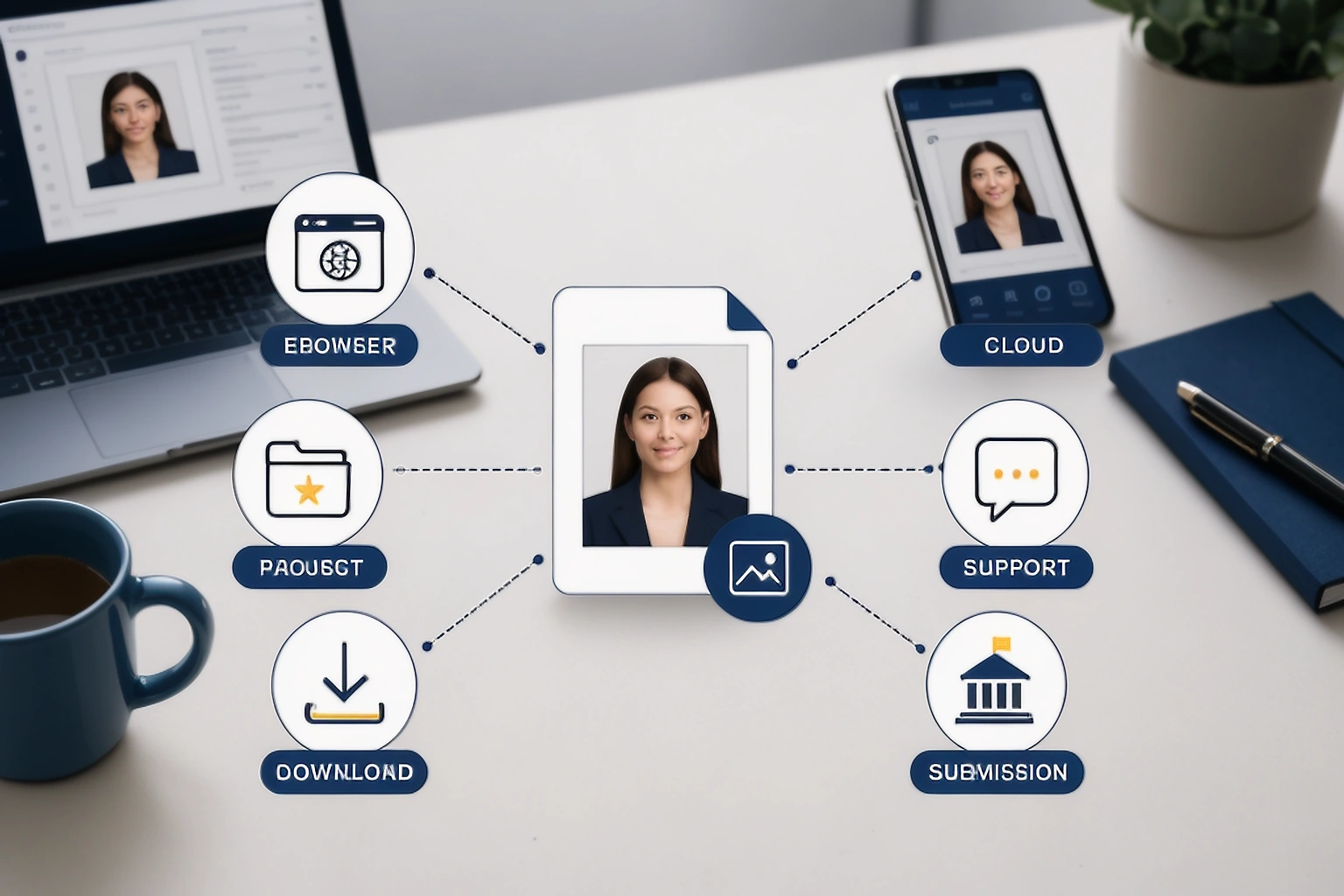
The government portal is a separate recipient
Private preparation does not mean the authority will not receive the final file. Submit through the official upload address and remember that the receiving organisation has its own application and privacy terms.
Preparing someone else’s photo needs extra care
If you prepare a partner’s, child’s or customer’s portrait, keep each applicant’s files separate, limit access and do not reuse one person’s export as a test image for another. For a child’s photo, explain who controls the file and when working copies will be removed.
What PassportPhotoBox currently does
Upload flows place the selected image and preset in browser session storage. The editor persists official and creative sessions in IndexedDB with local storage fallbacks. Background removal has a model path that runs in the browser and a server fallback, while creative generation posts the edited input to /api/ai-generate; Official Document Mode blocks that creative action.
These facts describe individual features, not a complete description of account, support or infrastructure retention. Read the live privacy and deletion pages for those records.
| Feature | Current behaviour | What you should check |
|---|---|---|
| Upload handoff | Selected photo and preset use browser session storage | Clear the session and download folders when the task ends |
| Editor session | IndexedDB with fallback storage in the browser for official and creative workspaces | Use the editor’s clear or delete control when finished |
| Background removal | A model path that runs in the browser with a server fallback route | Read the feature notice before assuming the operation stays local |
| Creative AI generation | Edited input is posted to /api/ai-generate | Use only when you understand the remote AI processing path |
sometimes asked questions
Is a passport photo biometric data?
A face photo is personal information. Under the UK ICO definition, it becomes biometric data when specific technical processing relates to physical characteristics and allows or confirms unique identification. A stored portrait is not automatically biometric data just because it shows a face.
Is browser processing more private?
It can reduce transfer for the particular operation that runs in the browser. It does not prove that every feature is offline, and it does not remove copies in browser storage, downloads, accounts or cloud drives.
Should I email my passport photo to support?
Only if the support route genuinely needs the image and the privacy notice explains that path. An error message, browser, project reference or screenshot with personal details removed can be enough for many problems.
Does deleting a project delete every copy?
That depends on how the service stores each copy. A visible project can disappear while backup records, payment records, security logs or a copy saved to your device follow separate lifecycles. Read the deletion wording for the exact feature.
Can a photo contain hidden location data?
A camera file can carry technical details such as the device model, capture time and, when location tagging was enabled, GPS coordinates. Check the exported file rather than assuming metadata was removed.
What is the difference between face detection and recognition?
Detection locates or measures a face in an image. Recognition compares facial features to identify or verify a person. The second purpose is the important distinction when you are assessing biometric processing.
Keep control by reducing movement
You do not need to avoid every online tool. Know which feature sees the image, where copies are created, when the purpose ends and what action removes the file. Use the privacy policy, security page and data deletion guide beside the exact workflow; if the explanation is too broad, pause before upload.
Choose a photo workflow you can explain
Open the preparation tools and check the privacy path for the exact operation before selecting a sensitive portrait.
Official guidance checked for this article
Rules and privacy principles can change by country, application route and product feature. Use these links as the starting point, then open the current page for the exact submission or processing decision.