Crop and resize a signature for application portals without mixing it into the portrait workflow. Contrast enhancement and exact KB compression in one place.
Preview the Signature Before You Download It
A useful preview lets you compare the original handwriting with the prepared result. Check that the first and last strokes remain visible and that the crop has not removed part of the signature before downloading the file.
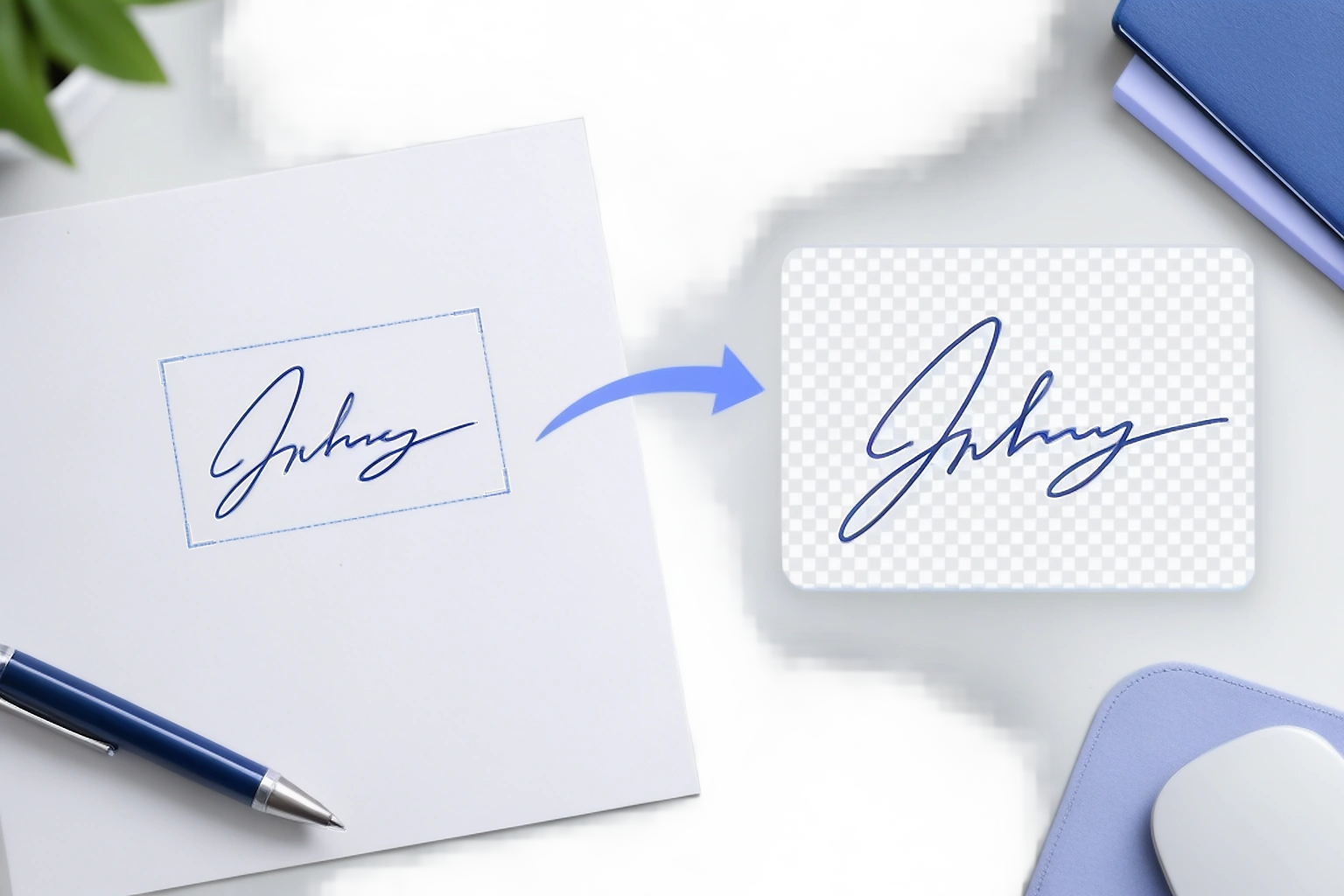
Resize image for signature with exact dimensions and KB limits
Many online job, examination, and banking portals require a separate cropped signature with strict dimension and kilobyte requirements. Our signature resize tool prepares your signature effortlessly.
Adjust the signature size, convert ink scans to a clean signature jpg or signature jpg format, and use our signature compressor and signature size reducer to hit specific portal presets.
Compress signature to 10 to 20 KB online
Perform an online signature resize for targets like signature resize 20 kb or signature resize 10 to 20 kb. Manage your signature size in kb, resize image for signature, resize signature image, compress signature, and rely on our signature image resizer for crisp contrast.
The tool includes an intelligent ink contrast enhancer that brightens paper backgrounds to pure white while making blue or black pen strokes deep and legible.
- Preset for 10 KB to 20 KB (standard for SSC, UPSC, and IBPS)
- Automatic paper whitening and ink contrast boost
- Crop tool with standard 2:1 and 7:2 signature aspect ratios
- Direct JPG export optimized for government portal validators
Before you upload a photo
Begin Signature Resizer with the original camera file whenever it is available. A screenshot, copy from a messaging app or previously compressed image can look acceptable on a phone while lacking the detail needed around the eyes, hair and jaw. Keep the complete head and shoulders in frame so the crop tool has enough space to position the face.
Use soft, even light and look at the image at full size before editing. If the eyes are closed, the face is out of focus or part of the head is missing, take another photo because software cannot recover truthful detail that was never captured. This early check saves more time in most cases than trying several corrections on a weak source.
How to use the controls without over editing
Open the document preset before moving a slider because each control should serve a requirement, not a cosmetic preference. Make one visible change at a time, compare it with the original and undo it if the face begins to look different. In an official workflow, a plain and accurate result is more useful than a polished portrait.
Crop, canvas size, background and compression solve different problems. Cropping changes what is inside the frame, resizing changes the output dimensions, and compression changes how the file is stored; using one as a substitute for another can create distortion or softness. The review screen keeps those decisions separate so the final file is easier to understand.
Common reasons an otherwise good photo fails
A photo can have the right width and height but still be difficult to use. Typical causes include a face that sits too high, a shadow behind the head, glare across glasses or a file that became soft after repeated compression. Signature Resizer reports the relevant technical issue beside the preview so you can decide whether to adjust the file or return to the camera.
Do not force every warning into a green state. When a correction would need to redraw an eye, rebuild hair or change facial structure, a new source photo is the safer outcome. PassportPhotoBox intentionally keeps that boundary visible because preparation that preserves identity matters more than completing an automated action.
Download, print and keep the final file stable
Review the selected preset, pixel dimensions, format and file size together before downloading. Save the result directly to the device and upload that file to the receiving portal instead of sending it through an app that can compress it again. If the portal reports a problem, return to the saved project or original rather than repeatedly editing the rejected export.
For printing, use a prepared sheet and choose Actual Size or 100% in the print dialog. Measure one copy before cutting the full page because Fit to Page can quietly change physical dimensions. Keep the untouched original until the application is complete, then use the product's deletion controls according to your retention choice.
PassportPhotoBox does not issue documents or guarantee acceptance. Check the receiving authority’s current instructions before submission.