Use this tool when an application asks for a name, date, or both below the photo. Enter only the information requested by the form, then review the text area and finished image before downloading it.
Preview the Name and Date Before You Download
The preview should make it obvious where the text will appear before the image is saved. Check the spelling, date format, and spacing carefully because a correct photo can still become unusable if the candidate details are wrong.
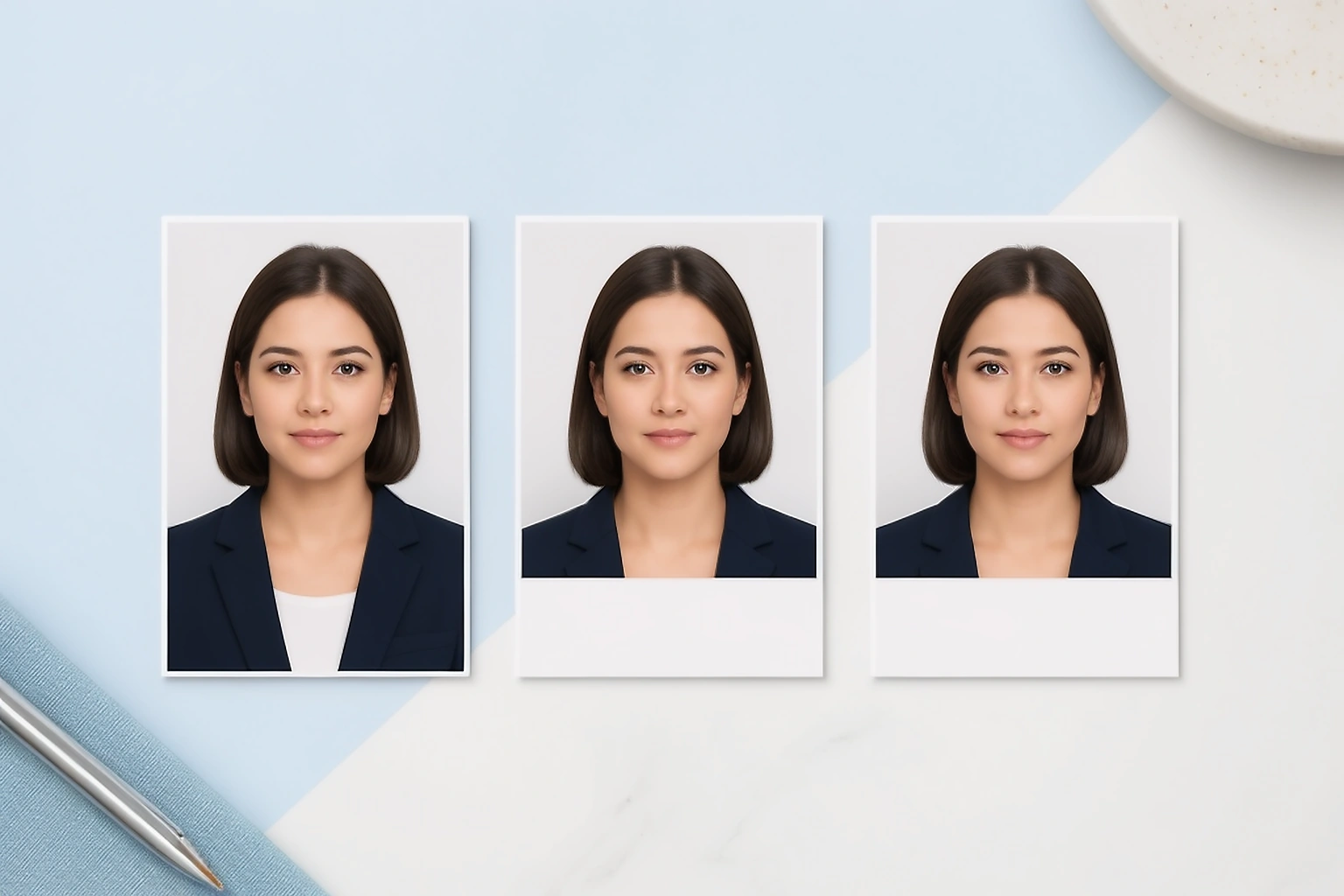
Prepared portrait before candidate details are added
A separate lower area for the information requested by the form
Review the finished photo before saving it
Add Name and Date to a Passport Size Photo for an Application
Some examination, recruitment, and application forms ask for candidate details to appear with the photo. The requirement can ask for a name, a date, or both, so the current notice or upload screen should decide which fields you use.
Exam specific pages on PassportPhotoBox can provide the reviewed requirement when a current source is available. This general tool stays flexible instead of assuming that every form uses the same format.
If the form asks only for a date, leave the name field empty. If it asks only for the candidate's name, use the name field alone rather than adding extra information that the application did not request.
Control How the Name and Date Appear Below the Photo
The name and date should remain easy to read after the image has been resized for the application. Choose a text size that fits the available width and check the preview before download because a long name can become crowded when the photo itself is small.
The date format should follow the application rather than personal preference. If the notice uses a format such as day, month, and year, enter it the same way so the finished image matches the information expected by the form.
Select the date format requested by the application when more than one option is available.
Change the font size or capital letters so the candidate details remain readable.
Keep the name and date separate from the face and make sure the text fits inside the final image.
Use the selected application profile for the image dimensions instead of assuming that every form uses 35 × 45 mm or 2 × 2 inches.
Add Only What the Application Requests
| Application asks for | What to add |
|---|---|
| Name and date | Add both fields in the format shown by the form |
| Name only | Add the candidate name and leave the date empty |
| Date only | Add the requested date and leave the name empty |
| No text below the photo | Use the normal photo workflow instead of this tool |
Before You Upload the Photo
Start with the version of the photo you actually plan to use for the application. If the image still needs major cropping, background work, or dimension changes, prepare the photo first because adding the name and date should normally be one of the last preparation steps.
Check that the face is clear and that enough space remains for the selected layout. If the photo itself has a serious problem, adding candidate details will not fix it, so correct the photo or check the prepared photo before creating the final application image.
Add the Name and Date After the Photo Is Prepared
The name and date are easier to manage when the crop and final dimensions are already settled. If the image is resized again afterwards, the text can become smaller, softer, or harder to read.
A simple order works better: prepare the photo, set the required photo dimensions, add the requested candidate details, then compress the finished photo only if the application also gives a file size limit.
Which Tool Should You Use First?
| What still needs to change | Correct tool |
|---|---|
| The crop or face position needs adjustment | Passport Photo Editor |
| The final width and height are wrong | Passport Photo Resizer |
| The photo is ready and needs a name or date | Photo With Name and Date |
| The finished file is too large for the portal | Passport Photo Compressor |
Check the Candidate Details Before You Download
Names are easy to mistype when you are concentrating on the photo itself. Compare the spelling with the application form and check the date once more before saving the image because even a small text error means the finished file can need to be created again.
Look at the final image at its normal display size as well as a larger preview. Text that looks clear when zoomed in can become difficult to read after the image is reduced for an application portal.
Common Problems With Name and Date Photos
- The candidate name is misspelled or does not match the application form.
- The wrong date format is used even though the form gives a specific format.
- The text becomes too small after the image is resized or compressed.
- Extra information is added even though the application did not request it.
These problems are different from normal passport photo problems because the photo itself can already be correct. The mistake happens in the application details, which is why the final text should be checked separately before download.
Check the Current Application Notice Before Adding Details
Requirements for candidate photos can change between examinations, recruitment cycles, and application portals. A previous form can have asked for a name and date while a newer form can use a different upload instruction, so old examples should not be treated as a permanent rule.
When a current application notice gives a photo or file specification, use that notice as the final reference. The Exam and Document Resizer can help prepare a supported file, but it does not replace the instructions from the organisation receiving the application.
How to Add Name and Date to a Passport Size Photo Online
Start with the photo that has already been prepared for the application. Enter the candidate details requested by the form, choose the required date format, review how the text appears below the image, and download the finished file once everything matches the application.
Use the version with the correct crop and dimensions whenever possible.
Add the name, date, or both according to the application.
Check spelling, date format, text size, and placement before saving the result.
Use the final file for the portal and keep the original photo separately.
Download the Final Application Photo
Review the candidate details, photo dimensions, format, and final file size before downloading. Save that finished version directly to the device so another app does not resize the image or make the text less clear before you upload it to the application portal.
Keep the original photo separately until the application is complete. If another form asks for different text or a different date, create a new version from the original rather than editing the previously compressed image.
Photo With Name and Date Questions
Can I add my name and date to a passport size photo online?
Yes. Upload the prepared photo, enter the candidate details requested by the application, and review the finished image before downloading it. The tool can also be used when the form asks for only a name or only a date.
Can I create a passport size photo with only the date?
Yes. Leave the name field empty when the application asks only for a date. The current application notice should decide which information appears below the photo.
Can I add only my name below the photo?
Yes. Add the candidate name and leave the date field empty when that is what the form requires. Extra information should not be added simply because the tool provides both fields.
Which date format should I use?
Use the format shown by the application or examination notice. Different forms can use different date formats, so one format should not be treated as universal.
Should I resize the photo before adding the name and date?
sometimes, yes. Preparing the crop and dimensions first helps keep the text readable because resizing the finished image afterwards can make the candidate details smaller or softer.
What if the final file is too large for the application portal?
Finish the photo and text first, then use the Passport Photo Compressor if the portal also gives a file size limit. This keeps the text placement separate from file size reduction and makes the workflow easier to check.
PassportPhotoBox helps prepare the photo and candidate details but does not decide whether an application will be accepted. Follow the current instructions from the organisation receiving the photo, especially when it specifies the text, date format, image dimensions, or file size.