Type your name or initials and choose a signature style, or draw the signature yourself if you want to use your own handwriting. Adjust the width, ink, and background, then download the finished signature as PNG, JPG, or WebP.
Preview Your Signature Before You Download It
The preview should match the exact text or drawing you created. Check that the full signature stays inside the canvas and that no stroke is cut off before downloading the image.
Create a Signature From Your Name or Text
A typed name can be turned into several visual signature styles without changing the spelling you entered. Compare the cursive and handwritten designs, then adjust the width and stroke thickness until the mark fits the space where you plan to use it.
If the receiving form asks for your actual handwritten signature rather than a styled version of your name, switch to the drawing option or prepare a scan of your real signature.
Draw Your Own Signature
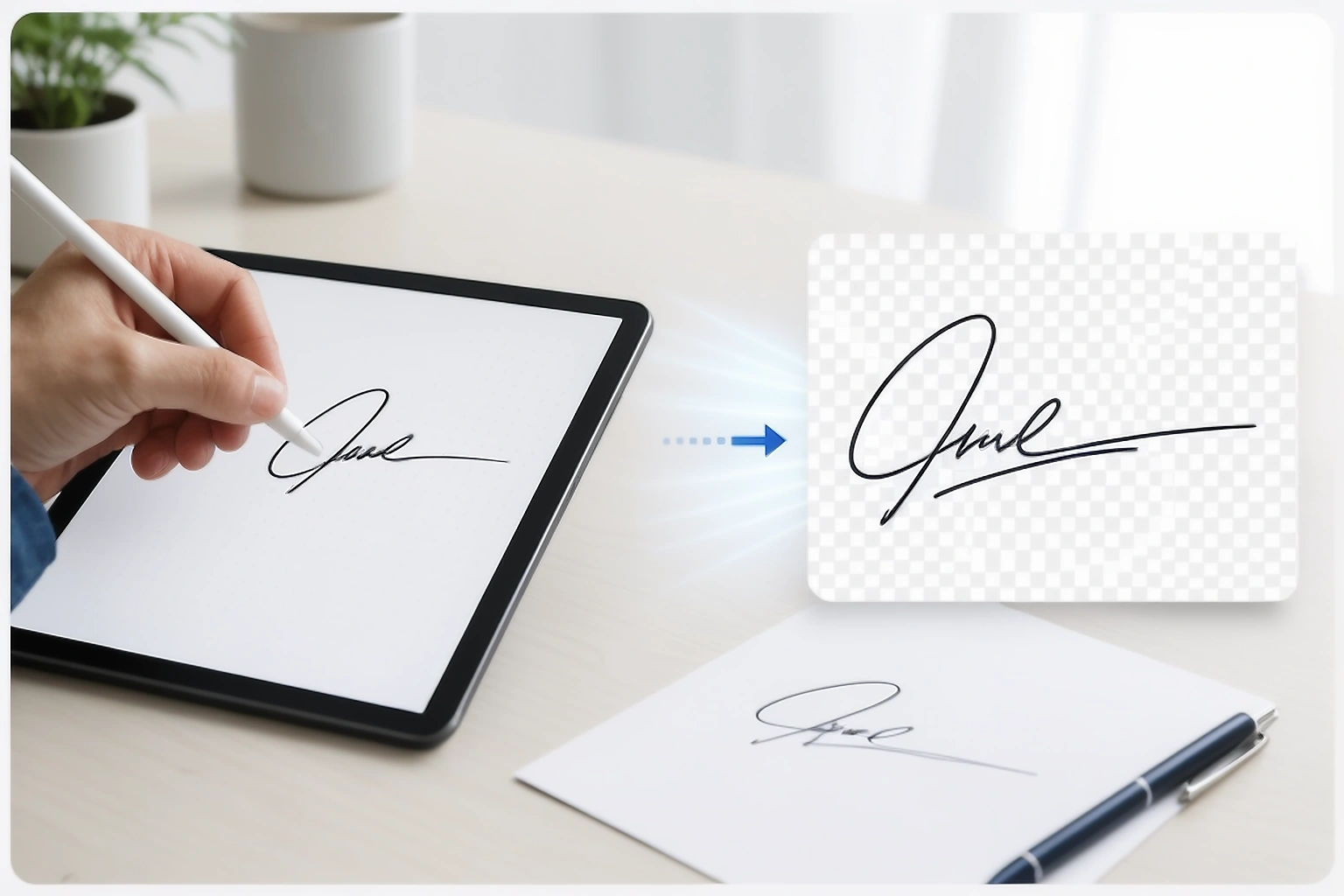
The drawing canvas lets you write your signature directly with a mouse, trackpad, stylus, or finger. If a stroke does not look right, undo it and try again before choosing the ink colour and background for the final image.
Drawing is the better option when the signature needs to follow your own handwriting rather than one of the styles created from typed text.
Typed Signature or Your Own Handwriting?
Typing your name is useful when you want to compare several signature designs quickly. The tool keeps the name the same while changing the visual style, which makes it easier to find a mark you like without drawing it repeatedly.
Drawing is different because the shape comes from your own movement on the canvas. When a school, employer, application form, or other organisation specifically asks for your handwritten signature, that distinction matters because a styled version of typed text can not meet the requirement.
Choose the Right Way to Create Your Signature
Explore Cursive and Handwritten Signature Styles
Different styles can make the same name look compact, flowing, bold, or more formal without changing the text itself. The gallery is useful for comparing visual ideas, especially when you are deciding how a name or initials should look as a signature image.
These styles create the appearance of handwriting inside the image. They do not install a signature font on your computer or create a font file that can be used in Word or other applications.
Adjust the Signature Without Making It Hard to Use
A signature can look attractive on a large preview and still become difficult to read when it is placed inside a small form field. Check the width and stroke thickness together because a very wide mark can need to be reduced later, while very thin strokes can disappear when the image is resized.
Choose the background based on where the signature will be used. A transparent PNG is useful when the mark needs to sit over another background, while a white JPG can be simpler when an application specifically asks for a JPG image.
Already Have a Signature Image?
This generator is meant for creating a new signature from typed text or your own drawing. If your handwritten signature already exists as a photo, scan, or document image, there is no reason to recreate it here because the Signature Extractor and Signature Resizer are designed for that existing ink workflow.
Common Problems When Creating a Signature Image
- A long name becomes too narrow after it is forced into a small signature area.
- Very thin strokes become difficult to see after the signature is resized.
- A transparent background is lost when the file is saved as JPG.
- A styled version of typed text is used where the receiving organisation asked for the person’s actual handwritten signature.
Most of these problems are easier to avoid before download than to repair later. Review the final preview at roughly the size where the signature will be used, then choose the format that matches the next workflow.
Download the Signature as PNG, JPG, or WebP
Choose PNG when you need a transparent area around the signature and the next workflow accepts that format. JPG uses a solid background, while WebP can provide another compact image option where it is supported.
If an application later asks for a specific pixel size or KB limit, download a clean source image first and continue to Signature Resizer. That is better than repeatedly changing the generator output because the resizer is built specifically for those requirements.
A Signature Image Is Not the Same as a Verified Electronic Signature
The tool creates a visual signature image from text or from the drawing you make on the canvas. It does not verify who created the mark, issue a digital certificate, record a signing audit trail, or protect a document from later changes.
Some forms accept a signature image while other organisations require a particular electronic signing method. Check the instructions from the receiving organisation before assuming that an image of a signature is enough.
How to Create a Signature Online
Start by deciding whether you want a signature style created from your name or a mark that follows your own handwriting. The tool keeps both options in the same workspace, so you can compare the result before downloading anything.
Type a name or initials, or use the drawing canvas when you want the shape to come from your own handwriting.
Compare signature styles or adjust the drawing, then set the width, stroke thickness, ink colour, and background.
Check that the full signature remains visible and still looks clear at the size where you plan to use it.
Choose PNG, JPG, or WebP based on the next application or document workflow.
Which Signature Tool Do You Need?
Online Signature Generator FAQs
Can I create a signature from my name?
Yes. Enter your name or initials and compare the available signature styles before choosing the one you prefer. The tool keeps the text you entered while changing the visual shape and spacing of the mark.
Can I draw my own signature online?
Yes. Use the drawing canvas with a mouse, trackpad, stylus, or finger when you want the result to follow your own handwriting instead of a style generated from typed text.
Can I create a cursive or handwritten signature?
The style gallery includes cursive and handwritten designs for a name or short text. These are visual signature styles inside the downloaded image and are not font files installed on your device.
Can I download my signature with a transparent background?
Yes, when PNG or WebP with transparency is supported. JPG cannot keep transparent areas, so the tool uses a solid background when you download the signature in JPG format.
Is this a verified electronic signature?
No. The generator creates a visual signature image but does not verify identity, issue a digital certificate, record an audit trail, or provide proof that a document has not changed.
What should I do if an application asks for a specific signature size or KB limit?
Create or draw the signature first, then continue to Signature Resizer. Keeping creation and resizing separate makes it easier to set the required dimensions and file size without rebuilding the signature itself.
PassportPhotoBox creates visual signature images and supporting document files. It does not verify signer identity or guarantee that a signature image will be accepted, so follow the signing method required by the organisation receiving the file. Review the acceptable use information when it applies.