Passport Photo Background
Already have a usable photo but the background is uneven or the wrong colour? Use the passport photo background tool to clean the backdrop and apply a supported plain colour for the document you select.
The background is handled separately so the normal document workflow does not need to change your facial features.
Clean the Background Without Opening the Full Photo Editor
Upload the photo you want to use and choose the document first. The background tool then focuses on the backdrop so you can clean or replace it without working through unrelated editing controls.
Clean an uneven background and apply a plain colour supported by the selected document profile. In Official Document Mode, the background is handled separately so normal preparation does not need to alter facial identity.
Background Preview
Compare the original background with the cleaned version before you continue.
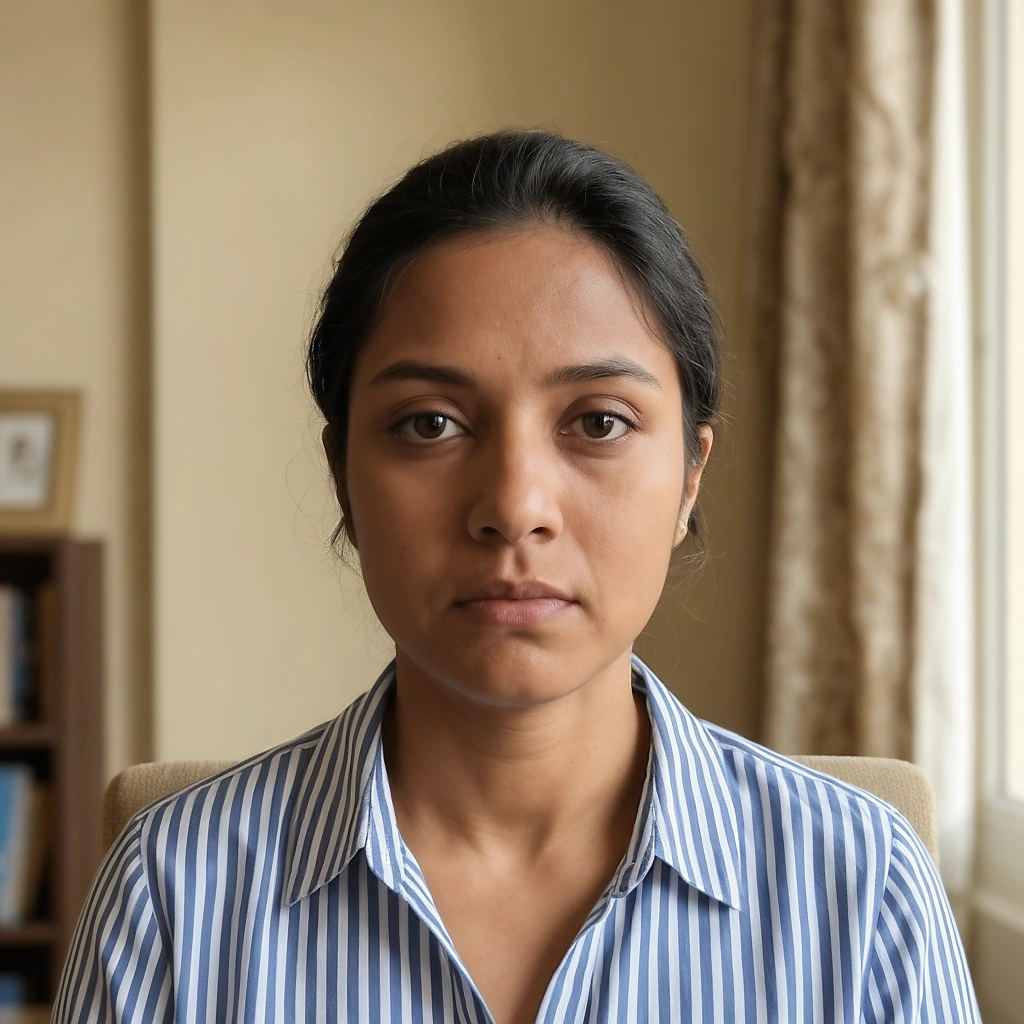
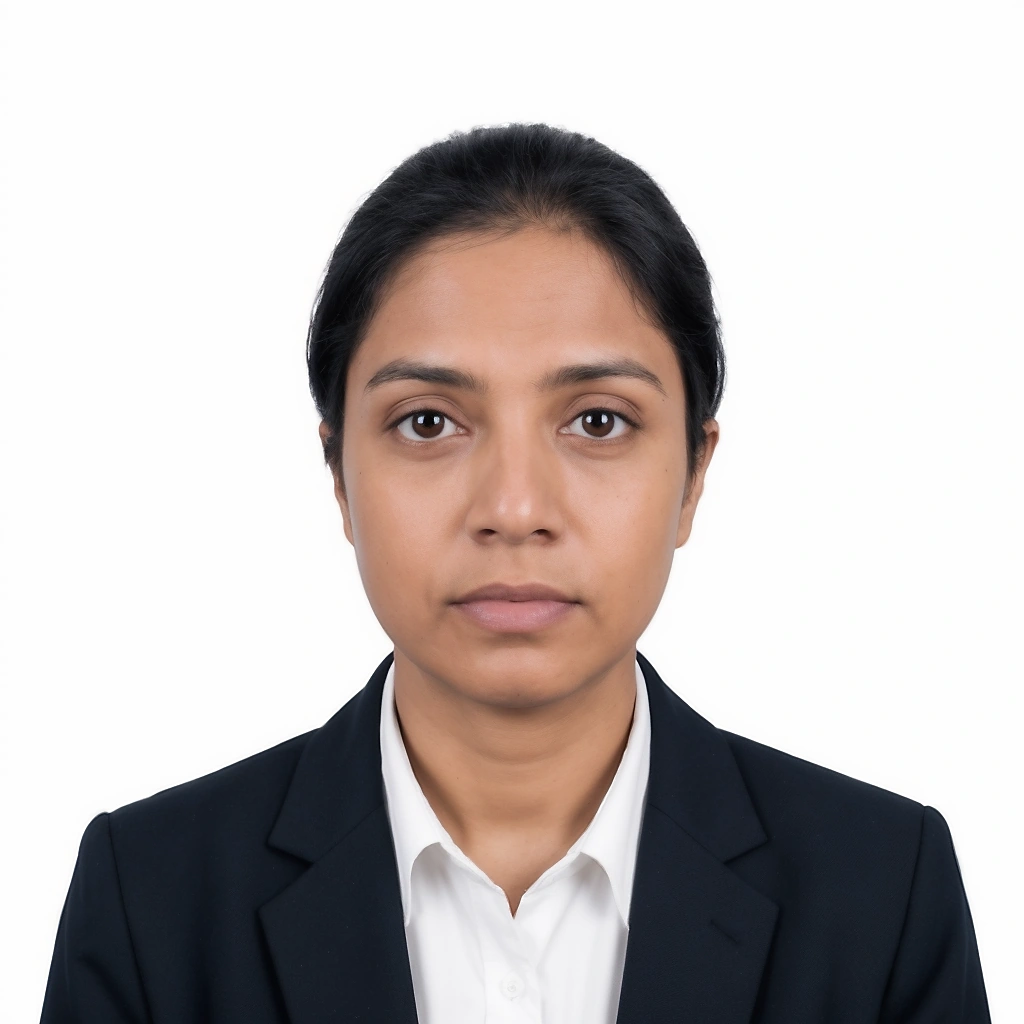
Change Your Passport Photo Background Carefully
A wall that looks plain in the room can still show shadows, colour patches or objects once the photo is uploaded. The passport photo background changer lets you clean that area and use the plain colour supported by the document profile you selected.
The tool works on the background area rather than treating the whole portrait as something that needs to be redesigned. If the original photo has missing hair detail, heavy blur or a very difficult edge, taking another photo can be safer than forcing a cutout that looks artificial.
Choose a Background That Matches the Document
White is common for document photos, but it is not the only background used everywhere. Choose the passport, visa or application first so the tool can show the background information saved for that profile instead of applying white automatically to every photo.
The result should still be checked against the receiving authority's current instructions. A clean background can fix an uneven wall or distracting room, but it cannot turn a photo with glare, closed eyes or missing facial detail into an approved application.
Common Plain Background Options
| Background | When to use it |
|---|---|
| White | Use it when the selected document profile calls for a plain white background |
| Off white | Use only where the document or application allows an off white background |
| Light grey | Choose it only for supported profiles that accept a light neutral background |
| Custom colour | Use for photos that are not for official documents or applications with another stated requirement |
- Choose from plain background colours supported by the selected workflow.
- Review the edges around the hair, ears and shoulders before keeping the result.
- Official Document Mode keeps the normal background workflow focused on changes that preserve identity.
- Processing in your browser is used where the current tool supports it.
Review the Edges Before You Keep the Background
Look closely around the hair, ears, neck and shoulders after the background changes. A small missed area or hard cutout edge can look more obvious against white than it did against the original wall.
If the separation removes part of the hair or leaves pieces of the old background behind, correct the mask where manual review is available. Do not reshape the face just to make the cutout look cleaner.
- Check that the full hair outline is still visible.
- Look for pieces of the original wall between loose hair strands.
- Check the neck and shoulder edges for hard or uneven cutouts.
- Compare the result with the original before downloading it.
Background Change, Crop, Resize or Compress?
| Task | What it changes | Best tool |
|---|---|---|
| Change background | The area behind the person | Passport Photo Background |
| Crop or reposition | What part of the photo appears inside the frame | Passport Photo Editor |
| Resize | Final mm, inch or pixel dimensions | Passport Photo Resizer |
| Compress | Final file size in KB or MB | Passport Photo Compressor |
Common Passport Photo Background Problems
- Uneven wall colour can remain visible after a weak background clean.
- Strong shadows behind the head can create an obvious outline.
- Fine hair can be accidentally removed if the source image is too soft.
- Pieces of the old background can remain around glasses, ears or shoulders.
The background tool can help with these areas, but it cannot fix every problem in the original photo. If the face itself is blurred, the eyes are closed or important detail is missing, use another source photo rather than expecting a background change to solve it.
Do not keep pushing the background cleanup when the edge starts removing real parts of the person. A slightly imperfect source photo is better retaken than turned into an unnatural cutout around the hair or face.
How to Change a Passport Photo Background Online
Choose the passport, visa or application first, then upload the original photo. Clean the existing background, select the supported plain colour and review the edges before downloading the result.
Load the relevant background information first.
Use the clearest version available.
Apply the supported plain colour.
Check the hair, ears and shoulders before download.
After the background change, check your passport photo when you also need to review supported dimensions, framing or other photo conditions.
Need a White Background for Your Passport Photo?
A white background is commonly requested for document photos, which is why it appears as a preset in many profiles. Do not choose it only because it looks familiar, though; check the selected passport or visa requirements first because the accepted background can depend on the document and workflow.
When white is the correct option, the tool replaces the existing backdrop while leaving the subject available for edge review before download. If you still need to create a passport size photo from a new portrait, use the maker workflow first.
Passport Photo Background FAQs
How do I change a passport photo background online?
Choose the document you are preparing, upload the original photo and use the background tool to clean the existing backdrop. Select a supported plain colour, review the subject edges and keep the result only when it looks natural.
Can I make a passport photo background white?
Yes, when white is supported for the selected passport, visa or application. Choose the document first because background rules are not identical everywhere.
Is the Passport Photo Background Tool the same as a background remover?
The tool can remove or clean the existing background, but its main purpose is document photo preparation. It keeps the workflow tied to passport, visa and application profiles rather than acting as a general background removal tool for every type of image.
Can I use an off white or light grey passport photo background?
Only when the selected document or application allows it. The tool can provide those colours for supported workflows, but the current instructions from the receiving authority should decide which background you use.
What if the background remover cuts into my hair?
Review the edge before downloading and correct the separation manually where that option is available. If the original photo is too blurred around the hair, taking another photo can give a more natural result than forcing the cleanup.
Should I check the passport photo after changing the background?
Yes. A cleaner background does not confirm the crop, dimensions or every other photo condition. Use the Passport Photo Checker when you want to review the supported checks after the background change.
PassportPhotoBox does not issue documents or guarantee acceptance. Check the receiving authority’s current instructions before submission.