The main difference is how much of the preparation you want to control
A straightforward passport or visa photo can be prepared with either service, but the experience is different once you begin working with the file. PhotoGov handles more of the preparation for you after the document is selected. PassportPhotoBox keeps more of the crop, dimensions and final output visible, which becomes useful when an application has specific upload limits or asks for additional files.
Compare what happens between the source photo and the finished file
The useful difference is not simply whether both services can create an identity photo. It is how much control you have during preparation, what happens when another application file is required, and whether you want a person to review the result.
| Decision point | PassportPhotoBox | PhotoGov |
|---|---|---|
| Starting point | Choose the requirement, then work with the photo inside the editor. | Select a country and document type, then upload or take a portrait. |
| Preparation approach | Crop, framing, dimensions and compression remain available as visible preparation controls. | PhotoGov automatically prepares the portrait for the selected document workflow. |
| Control before export | You can inspect and adjust the technical output before downloading the file. | The public PhotoGov workflow is centred on an automatically prepared result rather than the same level of manual output control. |
| Human review | You review the prepared result yourself. PassportPhotoBox does not make an acceptance decision for the receiving authority. | Human Verification can be added when you want a PhotoGov specialist to review the prepared photograph. |
| Document coverage | Country profiles cover passport and visa preparation, with related tools available for other application files. | PhotoGov states that it supports more than 900 document types. Its current public pages show different country totals, so the required document should be checked directly. |
| Digital output | Digital files can be prepared with direct control over dimensions and compression. | Digital photograph downloads are available for supported document workflows, with free or paid access depending on the region and current service conditions. |
| Printing | The finished photograph can be arranged into supported print sheets. | PhotoGov offers printable output, including an A4 PDF option in supported workflows. |
| Supporting application files | Separate tools are available for signatures, thumb impressions and related application files. | Comparable dedicated tools for preparing signatures or thumb impressions were not found in the public PhotoGov workflow reviewed for this page. |
| Automatic photo adjustment | Preparation controls remain visible, with separate tools available when the user needs a specific change. | For supported workflows outside the specific United States restriction, PhotoGov describes automatic adjustment of elements such as background and positioning. |
Research note: PhotoGov's public workflow confirms automated preparation, optional Human Verification, digital output and printable output. The service states that it supports more than 900 document types, although its current public pages use different totals for the number of countries covered. Its pricing page also confirms that some downloads and Human Verification are paid depending on the region. Features, prices and document coverage can change, so the current PhotoGov page for the required document should be checked before making a decision.
Start with the job you need to finish
A broad catalogue and guided review can be useful for one document. Direct editing control becomes more valuable when the same source has to serve several parts of an application.
PassportPhotoBox fits when…
The application requires more control than simply receiving one prepared identity photo.
- The portal specifies exact pixel dimensions or a tight file size limit.
- The application also requires a signature, thumb impression or document scan.
- You want to inspect crop and lighting adjustments directly before export.
- You need multiple formats or printable sheets from the same source image.
PhotoGov fits when…
A guided route is more useful when you want most of the photo preparation handled for you.
- You want an automated workflow that handles crop, sizing and background from a document selection.
- Human Verification is helpful for your specific document type.
- You only need a standard passport or visa photo without supporting files.
- You prefer downloading a prepared file without adjusting dimensions manually.
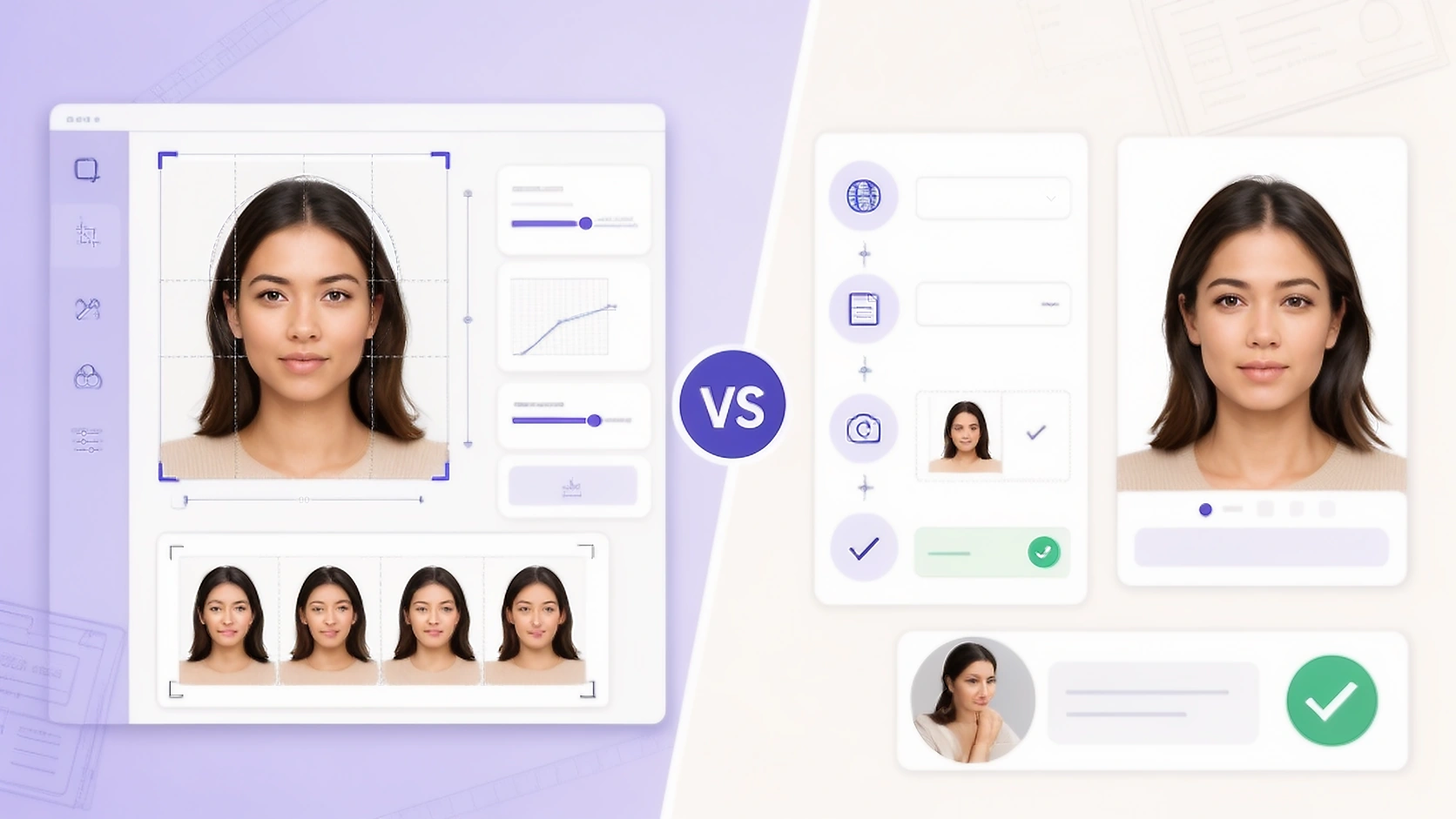
Core Workflow Differences
A simple passport photo can make PassportPhotoBox and PhotoGov look similar at first. Both can take a source portrait and help prepare an image for a document requirement. The difference appears in how much of the work is handled automatically and how much remains visible to the person preparing the application.
PhotoGov reduces the number of technical decisions you need to make. Its public workflow begins with the country and document type, then processes the portrait for that requirement. This can be convenient when you mainly want a finished identity photo and do not want to spend time adjusting individual output settings.
PassportPhotoBox keeps more of the preparation visible. Crop, dimensions, compression and final output can be inspected before the file is exported. That extra involvement becomes useful when an application portal has a strict upload limit or when the same application requires another separately prepared file.
What PhotoGov Does Well
PhotoGov has a clear guided workflow for someone who does not want to work through many technical settings. After the country and document are selected, the service prepares the portrait and presents the result for download. Its broad document catalogue is also useful when the required photograph is not limited to a standard passport or visa format.
Human Verification is a genuine difference between the services. PhotoGov lets a user pay for a specialist to review the prepared photograph and provide feedback. This does not replace the decision made by the receiving authority, but the additional review can be useful when a rejected photograph would cause another submission or delay.
PhotoGov also offers digital and printable output, with availability and pricing that can vary by region. This makes the service a practical choice when the main goal is to provide one portrait and receive a prepared identity photograph without manually controlling every technical setting.
Where PassportPhotoBox Gives You More Control
PassportPhotoBox takes a more hands on approach to preparing the finished file. The requirement remains connected to the editor while crop, dimensions and compression can be inspected before export. This is useful when the application portal gives technical limits that you want to verify yourself instead of relying only on an automatically prepared result.
The difference becomes larger when the photograph is only one part of the application. Separate PassportPhotoBox tools can prepare a signature or thumb impression when the form requires one of those files. Each file can then be handled according to its own requirement rather than being treated as another version of the passport photograph.
More control also means that the final review stays with the user. PassportPhotoBox does not decide whether an authority will accept a photograph, and correct dimensions alone cannot confirm that every visible requirement has been satisfied. The finished result should still be compared with the current instructions from the passport office, consulate or application portal.
Final Verdict & Recommendation
PhotoGov is easier for guided preparation. PassportPhotoBox gives you more control over the complete application files.
PhotoGov is the easier choice when you mainly need one identity photograph and prefer the service to handle most of the preparation. Its large document catalogue and optional Human Verification make the process particularly suitable for someone who values guidance more than manual control over the output.
PassportPhotoBox becomes the stronger fit when the application is less straightforward. Direct access to crop, dimensions and compression gives you more flexibility when a portal has strict technical limits. Its advantage becomes clearer when the same application also asks for a signature or thumb impression that needs to be prepared separately.
Open the EditorThe choice therefore depends on the work you actually need to finish. For a guided route to one prepared identity photograph, PhotoGov is a good option. For someone who wants to inspect the final files and handle more of the application preparation in one collection of tools, PassportPhotoBox is the more complete choice.
Whichever service you use, start with a usable source photograph. Software cannot recover all the detail lost in a heavily blurred or incomplete portrait, so taking another photograph can be safer than forcing a poor source through additional processing.
Common questions about PassportPhotoBox and PhotoGov
Is PhotoGov a government website?
No. PhotoGov states that it is an independent private service and is not affiliated with a government, embassy or consulate. The issuing authority still makes the final decision about whether a photograph is accepted.
Does PhotoGov offer human review?
Yes. PhotoGov offers optional Human Verification as a paid extra. A specialist reviews the prepared photograph and provides feedback, but that review is not the same as approval from the authority receiving the application.
Which service gives more direct control over crop and file size?
PassportPhotoBox is designed around visible preparation controls, including crop, dimensions and compression. PhotoGov's public workflow places more emphasis on automatically preparing the photograph after the document is selected.
Which is more useful when an application also needs a signature or thumb impression?
PassportPhotoBox is the better fit for that type of application because dedicated tools are available for those supporting files. PhotoGov's public consumer workflow reviewed for this comparison is primarily centred on preparing the identity photograph.
Open the PassportPhotoBox editor
Choose the requirement first, then crop, check and export the result.