Preparing a digital passport photo is more than making a portrait look neat and saving it as a JPEG. The online passport route decides which preparation steps belong to you and which belong to the official application.
Start with the live passport application and prepare only the digital version that route accepts.
Start with the passport application, not a generic crop
Online passport systems can set their own pixel dimensions, file range, format, photo age and crop instructions. A phrase such as “passport photo size” is not enough. Open the application and write down the rules shown there.
Choose the country and exact online route before opening a resizer or compressor. The same original portrait can need a different output for a new application or a renewal. If the authority handles the crop, leave that step to the authority.
For the general rules that apply before you reach a digital upload, use the passport photo requirements guide. This article owns the preparation and validation of the digital file for an online passport application.
Digital requirements differ by passport route
| Requirement | UK online passport | US online passport renewal | Canada online passport renewal |
|---|---|---|---|
| Minimum dimensions | 600 × 750 px | No single fixed minimum stated on the current upload page | 1200 × 1800 px |
| Maximum dimensions | No single fixed maximum stated | No single fixed maximum stated | 3000 × 4500 px |
| File size | 50 KB: 10 MB | 54 KB: 10 MB | 200 KB: 5 MB |
| Accepted format | Digital photo meeting UK requirements | JPG, JPEG, PNG, HEIC or HEIF | JPG or JPEG |
| Can applicant crop before upload? | UK says do not crop an your own device photo | Portal lets you reposition and crop | Original file must be without alteration |
| Photo source | Own device, booth or shop route | Original digital photo | Taken in person by a commercial photographer |
These examples are current reference points, not a worldwide passport standard. The official page for the application you are submitting is the specification to follow.
The government portal can be part of the photo preparation process
The upload screen can perform a step that a general photo tool should not copy automatically. UK guidance says applicants using their own device should not crop because the passport service handles the crop. The US online renewal flow lets applicants reposition and crop after uploading.
Read the live instructions first, then decide whether you need a prepared crop, the original camera file or only a file format check.
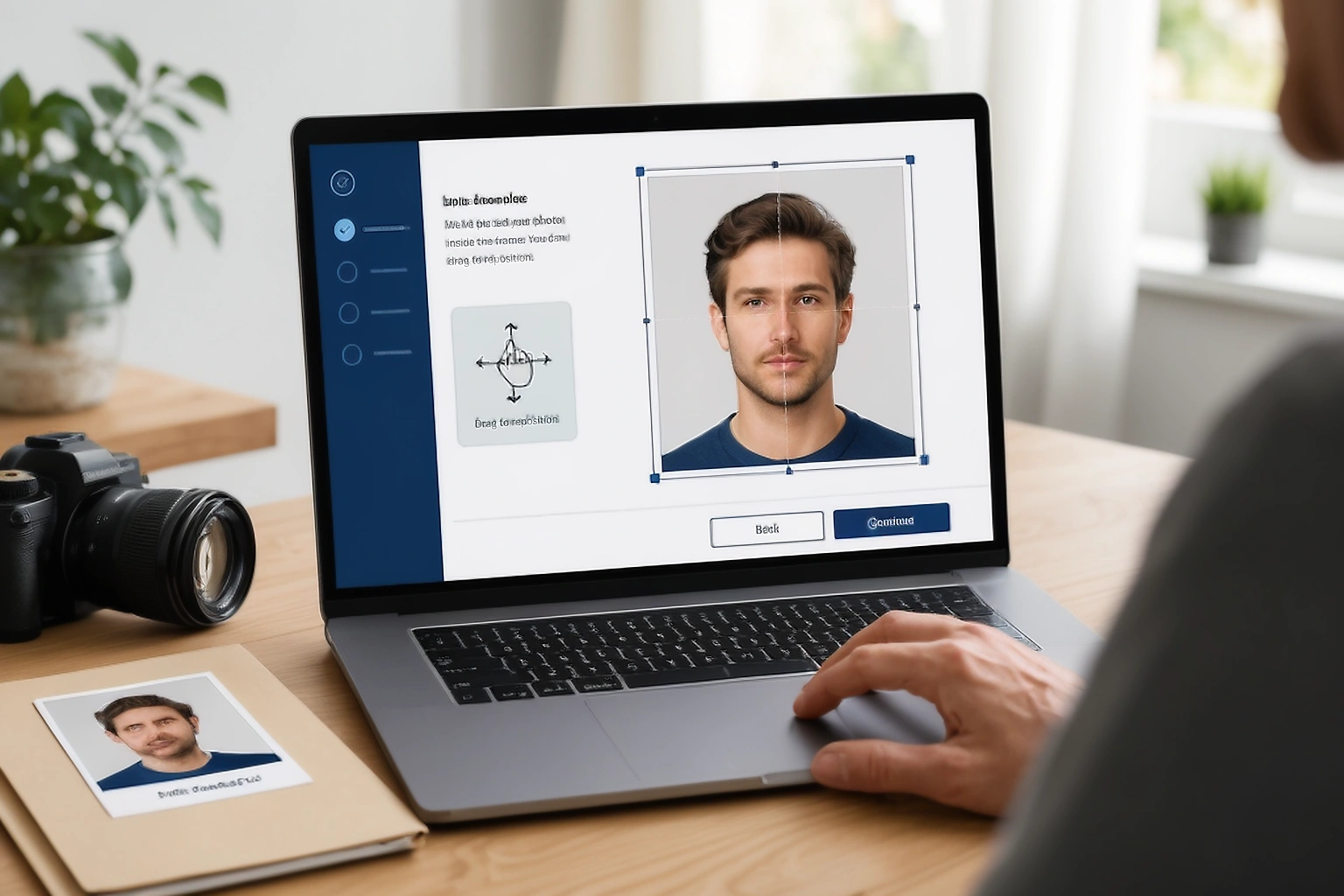
Prepare the source photo before worrying about file size
Begin with the strongest permitted source. Use the original camera file when required; do not start with a screenshot, a messaging app copy or a small export from an earlier application.
Canada requires a digital photo taken in person by a commercial photographer and saved directly from the original camera file. UK guidance describes an unedited digital photo, while US guidance asks for an original without filters or digital changes. A neat phone gallery portrait is not automatically suitable for every route.
Use the at home capture guide when the passport route allows you to make the source yourself. If the route requires a commercial photographer, follow that instruction instead.
Four checks before you prepare an upload
- Eyes and facial features are sharp, with enough detail to identify the person.
- There are no strong shadows, glare, objects or distracting background problems.
- The photograph is recent enough for the route you are using.
- The authority does not require an original, unedited file that your planned changes would replace.
If the source fails one of these checks, changing the file size first only creates a technically smaller version of the same problem. Take a new photo or return to the permitted source before you work on pixels and KB.
Photo problems can stop an otherwise complete application
The US Department of State says unacceptable photos are the number one reason applications are put on hold. Its online renewal process runs a basic check at upload, then an employee reviews the application after submission.
An automatic check can catch some technical problems, but it is not final acceptance. Treat a green upload result as permission to continue, not proof that the complete review has passed.
Digital passport photos are measured differently from printed photos
Printed photos are described in millimetres or inches because the physical portrait needs a stated size. Digital photos are described through pixels, file size, format and image shape.
Pixels tell the portal the width and height; KB tells it how much storage the saved file uses. Compression can reduce KB while keeping the same pixels, but heavy compression can make the face soft or blocky.
If the application allows a prepared export, the passport photo resizer can handle permitted dimensions. Use the compressor only when the live route gives you a file size target.
What each digital measurement tells you
| Property | What it measures | What a rejection can mean |
|---|---|---|
| Pixel dimensions | Width and height | The portal requires a larger, smaller or differently shaped image |
| File size | Storage used by the saved file | The file is above or below the permitted KB or MB range |
| File format | The way the image is encoded | The portal accepts JPEG but not the extension you selected |
| Aspect ratio | The relationship between width and height | The image has the wrong orientation or crop shape |
Compress only when the application requires a smaller file
Compress near the end, and only when the authority permits a prepared file. Set the permitted crop and pixels first, export once from the best source, then check the saved result.
Repeated JPEG saves add quality loss, and compression cannot replace a route that requires the original camera file. Canada’s original file rule is a clear example.
When the application gives only a maximum, stay a little below it without making the portrait soft. Check the downloaded file instead of trusting the preview.
Example: what happens when a US online passport photo is uploaded
Imagine an applicant eligible for US online renewal with a clear original digital photo inside the 54 KB to 10 MB range. They select that original in the official application instead of a screenshot or scan.
The portal permits repositioning and cropping, then runs a basic check. An employee still reviews the application after submission, so keep the clean original until that review is complete.
Example: the UK tells you not to crop the source photo
For a UK digital passport application using your own device, include the head, shoulders and upper body against a plain light background. The image should be clear, in colour and unaltered, with at least 600 × 750 pixels and a 50 KB to 10 MB file size.
Do not crop the your own device photo before upload: the application handles the crop. Correct preparation sometimes means leaving a source step untouched.
Example: Canada requires the photographer's original digital file
Canada’s online passport renewal route requires a photograph taken in person by a commercial photographer and saved directly from the original camera file. A scan of a print or a photo editor re export does not meet that source instruction.
The current range is 1200 × 1800 to 3000 × 4500 pixels, 200 KB to 5 MB, and JPG or JPEG. Record the photographer or studio name, address and date with the route’s form fields.
Is the problem with the photograph or the upload file?
| What you see | Problem type | Safer next action |
|---|---|---|
| Eyes or face are blurred | Source photograph | Take another photo where the route allows home capture |
| Strong shadow or glare | Source photograph | Correct the lighting before another capture |
| File exceeds the maximum | Technical file | Use a permitted export or compression step |
| Format is rejected | Technical file | Use an accepted format only where conversion is permitted |
A smaller file cannot fix blur, and a new photograph does not solve an unsupported file extension. Identifying the layer first stops random edits.
Do not turn a correct photo into a screenshot
A screenshot creates a new image. Its dimensions, format and compression can differ from the original, and the screenshot can include interface space or an unexpected crop.
US guidance says not to photograph a printed photo or scan a physical photo for online renewal. Canada also rejects a scanned printed passport photo. Use the original digital file when the route asks for it, and prepare a permitted export only when the instructions allow that step.
Check the actual file that will be uploaded
The editor preview is not the upload itself. Open the exact downloaded file and compare its extension, pixel dimensions and file size with the current requirement. Inspect the face and crop again for unexpected export changes.
Give the file a clear name that identifies the route, such as uk-passport-digital-2026.jpg. Avoid a folder full of files called final, final2 and latest. Clear names reduce the chance of selecting an older export.
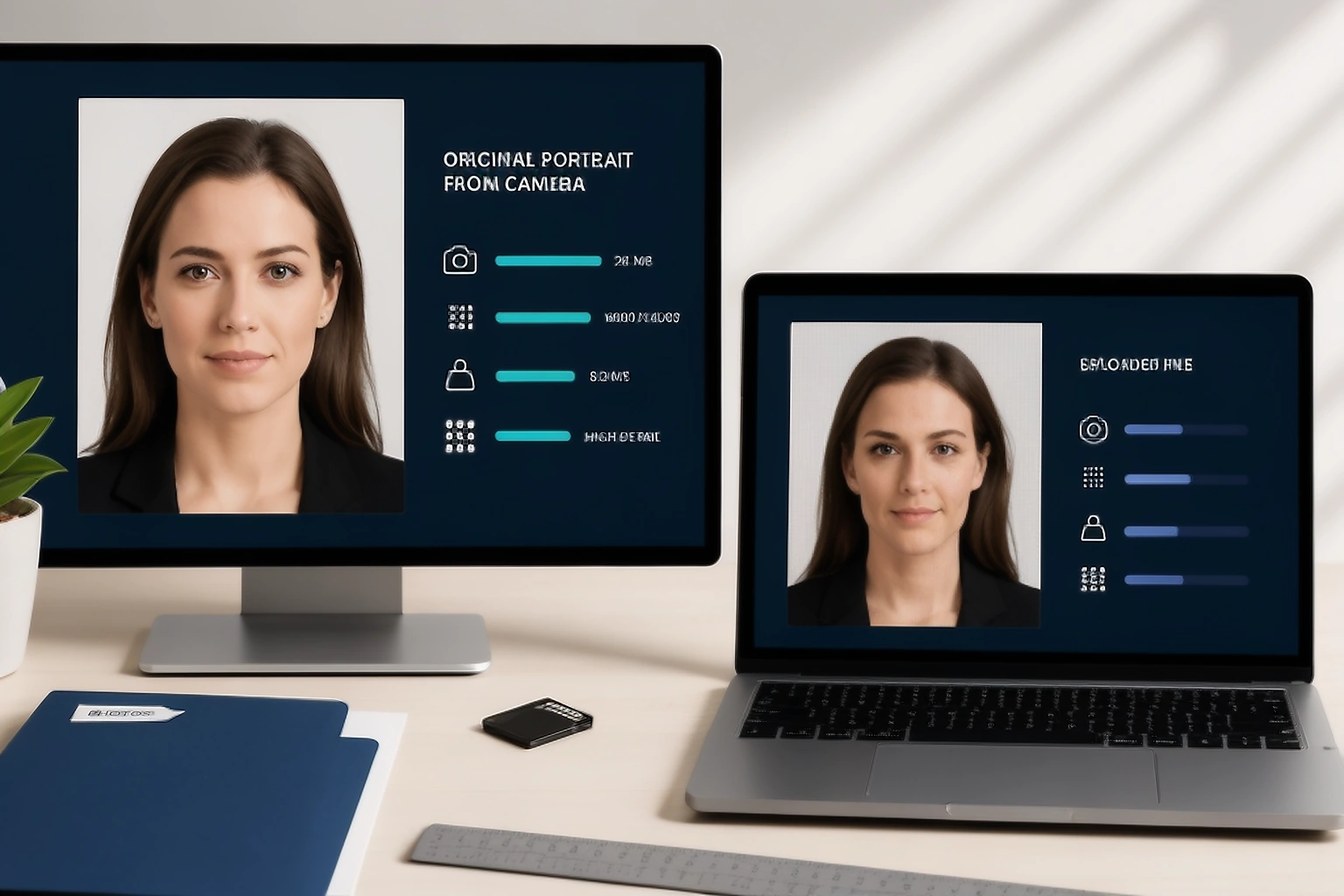
Treat the government portal as the final specification
A preparation tool can organise a file, but it does not replace the government form, portal or review process. Keep the official instructions open, especially when the upload screen performs its own crop or asks for the original file.
If a portal rejects the upload, save the exact error and change one property at a time. That keeps the rejected version traceable.
For permitted pixel changes, use the resizer. For a measurable review before submission, use the passport photo checker.
What to do when the passport portal rejects the photo
Save the exact error
Copy the portal wording or take a private note before closing the page.
Compare it with the file properties
Check pixels, format, aspect ratio and file size against the current requirement.
Return to the original when the image itself is the problem
Blur, glare, shadows and a poor facial frame need a better source when the route permits another capture.
Upload one corrected candidate
Make one permitted change, check the saved file and submit that version so the result stays traceable.
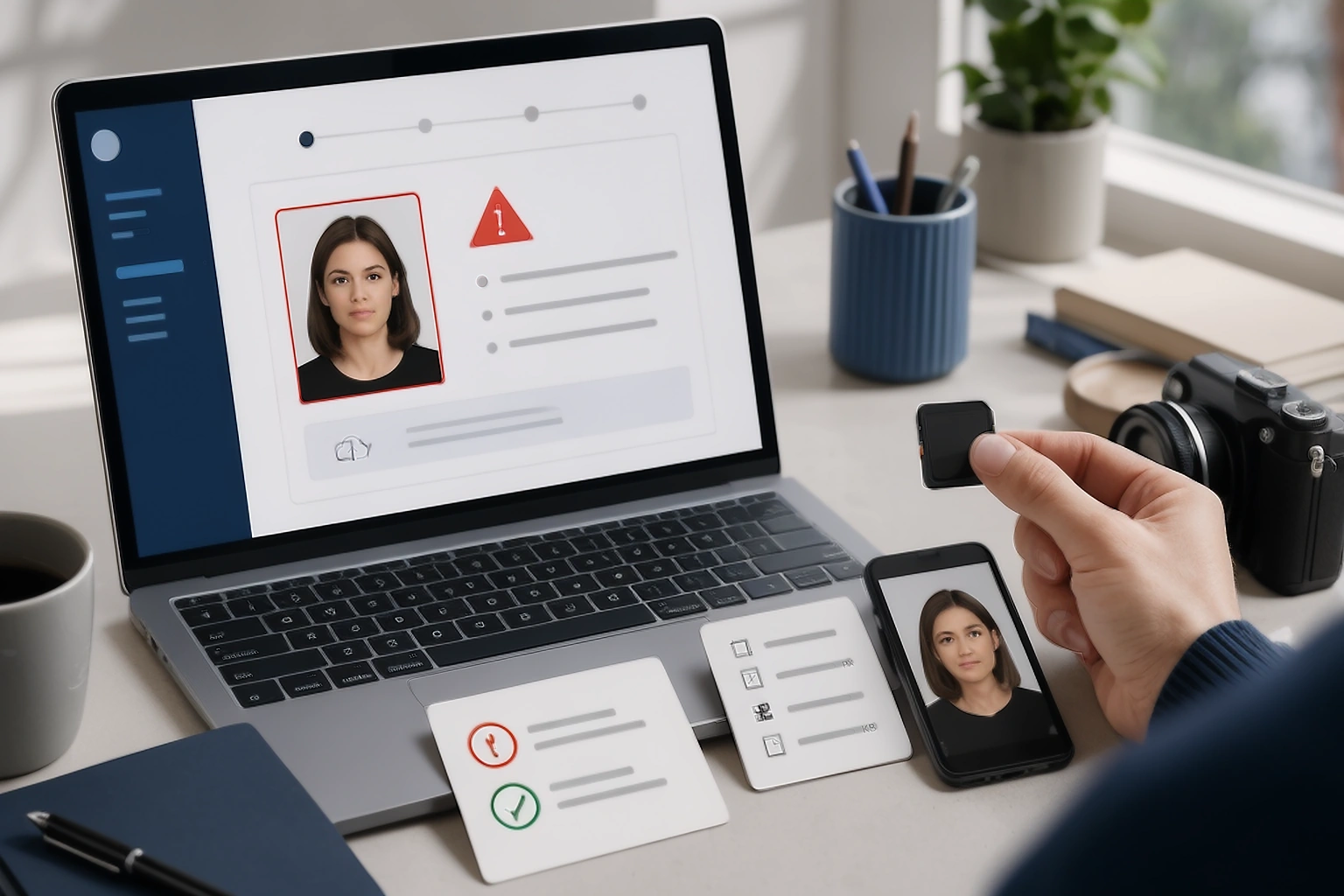
Passing an automatic check is not final passport approval
Online validators are useful for catching supported technical and visible issues, but the passport authority can apply a fuller review. The US route describes a basic upload check followed by employee review after submission.
The PassportPhotoBox checker is a preparation aid, not a guarantee of passport acceptance. Always follow the authority’s instructions when they conflict with a tool result.
Keep the original until the passport photo is accepted
Keep the untouched source and the submitted file together until the application has completed its review. Save the rejection wording if the authority asks for a replacement, then remove duplicate exports after the process is finished.
This simple record makes it easier to identify whether the issue came from the image, the export or the upload route. It also prevents an older compressed file from quietly becoming the next submission.
Be careful where you move the passport photo
A passport photo is an identity image. Avoid moving it through public links, shared folders or temporary websites unless you understand who can access the file and how long it stays there.
The US Department of State warns that sending a photo by text message can reduce quality. Move the original through a method that keeps the file intact, and remove copies from shared or temporary storage after the application is complete.
sometimes asked questions
What size should a digital passport photo be?
There is no single global digital passport photo size. The route decides the pixels and file limits. For example, the UK online passport service asks for at least 600 × 750 pixels, while Canada lists 1200 × 1800 to 3000 × 4500 pixels for an online renewal photo.
What file size should a digital passport photo be?
Use the range shown by the application you are completing. The current UK range is 50 KB to 10 MB, the US online renewal range is 54 KB to 10 MB, and Canada lists 200 KB to 5 MB.
Should I crop my digital passport photo before uploading it?
Not automatically. The UK tells applicants using their own device not to crop because its application handles the crop. The US online renewal flow lets the applicant reposition and crop after upload. Follow the route you are using.
Can I scan a printed passport photo for an online application?
Do not assume that a scan is accepted. Canada requires the original digital file from the commercial photographer, and US guidance says not to photograph or scan a printed photo for online renewal.
Can I compress a digital passport photo?
Only when the route accepts a prepared export and the saved file still meets the full specification. Compression can reduce KB, but it cannot repair blur, glare or a poor crop. Keep the clean source file until the application is complete.
Why can a photo pass the upload check and still be rejected later?
An automatic upload check covers only part of the review. In the US online renewal process, a basic check runs at upload and an employee reviews the application after submission. A passed upload is not the same as final approval.
Official sources
The examples in this article were checked against primary government guidance on 31 August 2026. Recheck the live application page before submitting because requirements can change.
What a passport photo preparation tool can check
A tool can help with supported checks, but it cannot approve the application
- It can review supported technical properties such as pixels, format and file size.
- It can flag visible signals such as blur, closed eyes, glare or missing edges when those checks are available.
- It cannot replace an official portal that performs its own crop or requires an untouched original.
- When a tool result and a government instruction disagree, use the government instruction.
If the application requires printed copies instead, use the passport photo printing guide rather than treating a digital file as a finished print.
Choose the passport requirement before editing
Select the country and online route first. Check the authority’s current instructions before changing the original because some systems crop the image themselves or require an untouched file.