One application can ask for five different image files
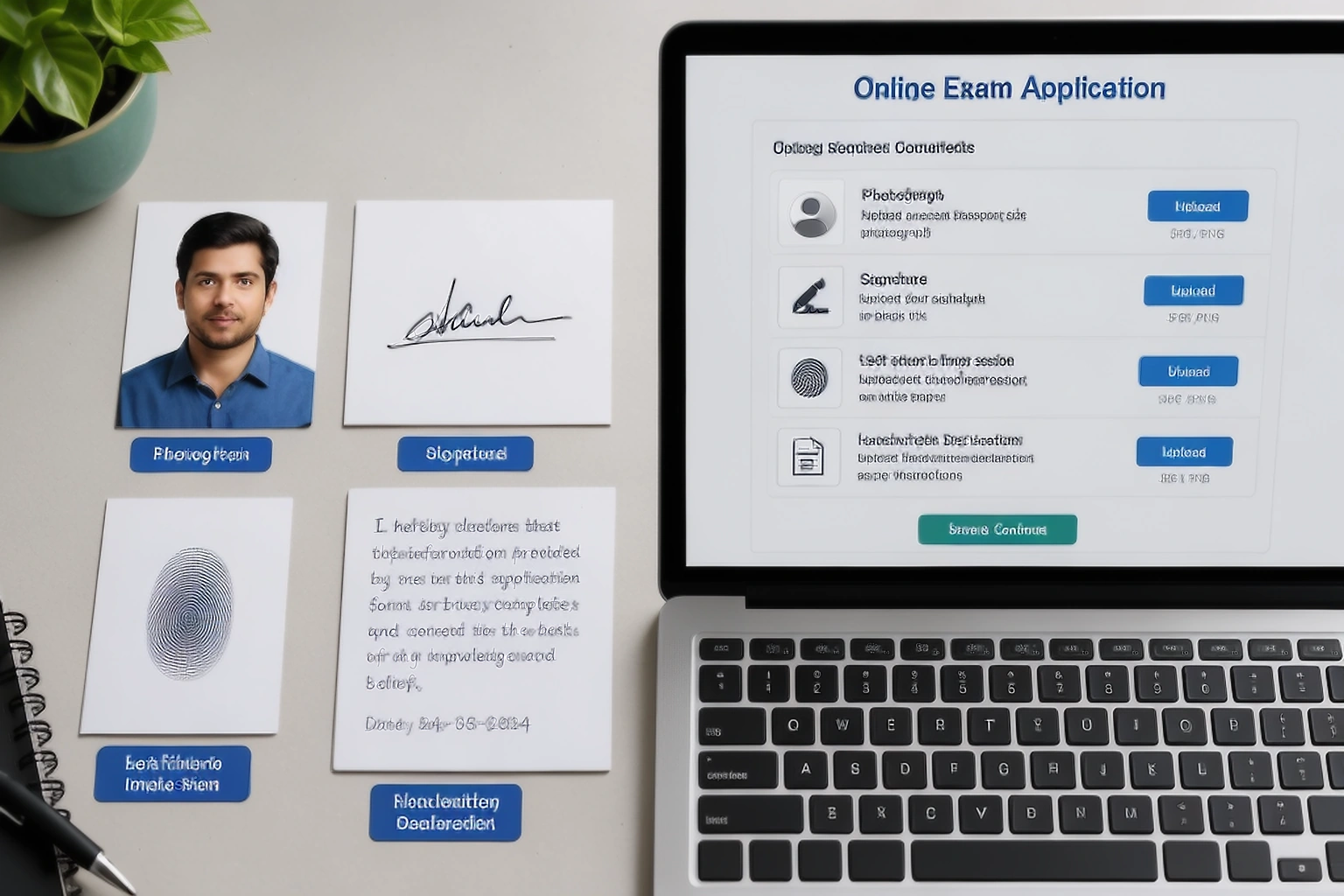
An exam or recruitment form can look simple until you reach the document upload section. A single application can ask for a photograph, scanned signature, thumb impression and handwritten declaration, while the portal separately captures another live photograph through your webcam or phone.
These files are not variations of the same passport size image. A portrait needs enough space around the face, a signature sits on a wide and shallow canvas, and a thumb impression needs enough detail for the ridges to remain visible. The handwritten declaration has another challenge because the complete sentence needs to stay readable after resizing.
Current recruitment systems make this distinction clear. In one 2026 IBPS hosted workflow, the uploaded photograph is accompanied by a separate signature, left thumb impression and handwritten declaration, while the applicant also captures a live photograph through a webcam or mobile phone.
The upload fields do different jobs
| File | What the application uses it for | Common shape | What commonly goes wrong |
|---|---|---|---|
| Candidate photograph | Shows the applicant's face | Portrait rectangle | Blur, wrong background, old photo or incorrect crop |
| Signature | Records the applicant's signature for later comparison | Wide and shallow | Thin strokes disappear or the signature becomes blurred |
| Thumb impression | Provides another identity marker | Small rectangle | Smudging or low contrast hides ridge detail |
| Handwritten declaration | Confirms the required declaration in the applicant's own handwriting | Wider text image | The sentence becomes unreadable after compression |
| Live photograph | Confirms the person completing the application | Captured by the portal | Poor lighting, an off centre face or trying to photograph an existing photo |
The exact set of uploads changes from one examination to another. This is why an exam image workflow should not assume that every field uses one universal preset.
A real 2026 upload guide shows how different the limits can be
A current 2026 recruitment upload guide hosted through the IBPS application system gives a useful real example. Its preferred photograph dimensions are 200 × 230 pixels with a file size between 20 KB and 50 KB. The preferred signature dimensions are 140 × 60 pixels, while the signature file should stay between 10 KB and 20 KB.
The same guide allows 20 KB to 50 KB for the left thumb impression and 50 KB to 100 KB for the handwritten declaration. It asks for JPG or JPEG files and recommends a minimum scanning resolution of 200 dots per inch.
| Asset in this 2026 example | Preferred dimensions | Published file size |
|---|---|---|
| Photograph | 200 × 230 px | 20 KB to 50 KB |
| Signature | 140 × 60 px | 10 KB to 20 KB |
| Left thumb impression | Follow current guide | 20 KB to 50 KB |
| Handwritten declaration | Follow current guide | 50 KB to 100 KB |
SSC, UPSC, IBPS, banking recruitment, state commissions and entrance examinations can change their upload rules between application cycles. Use this table to understand how the files differ, then use the current notice for the application you are actually filling out.
Start the photograph and signature from different source files
The photograph should begin with the clearest permitted portrait available for that application. The signature should begin with a separate signature written on clean paper or captured using the method specified by the notice. Trying to crop both from one document scan leaves too much unused space around one of them.
A signature needs special care because its thin strokes can disappear quickly when the image is reduced. The current IBPS hosted 2026 guide instructs the applicant to sign on white paper with black ink and states that the signature must belong to the applicant. It also warns that a mismatch between the uploaded signature and the signature used later on the attendance sheet or admit card can result in disqualification.
The aim is not merely to create an image that fits inside 140 × 60 pixels. The finished signature still needs to look like the signature you will actually use during the recruitment process.
A signature can meet the KB limit and still be unusable
Small signatures are easy to damage during preparation. A file can technically sit inside the permitted file size while the actual strokes have become faint, jagged or blurred. Portal validation cannot always tell whether the signature will remain useful when it is printed on an admit card.
Leave a little clean space around the handwriting, but do not upload half a sheet of paper around it. Crop close enough that the signature remains large and clear inside its canvas without cutting off the first or last stroke.
Follow the writing method in the notice too. The 2026 guide used in the example requires black ink on white paper and states that signatures written in capital letters are not accepted.
Before you export the signature
- Check that no stroke touches or disappears beyond the image edge.
- Make sure the writing remains dark enough to see at the final dimensions.
- Leave only reasonable white space around the signature.
- Compare the finished image with the signature you normally use.
Your uploaded photograph and live photograph can both be required
A prepared photograph does not replace the camera step inside every application. Current recruitment systems can use both.
The 2026 IBPS hosted guide says candidates must capture and upload a live photograph in addition to the normal uploaded photograph. A webcam can be activated directly from the application, or the candidate can scan a QR code and use a mobile phone to capture the image.
SSC uses a similar idea in its 2026 Selection Post process. Candidates are instructed to upload a live photograph and then upload a scanned signature separately. If the portal opens a live camera, use that capture process instead of trying to replace it with a prepared passport photo style file.
Use the camera process shown inside the application. A current IBPS hosted guide asks candidates to face the camera directly, use adequate light and stand against a light coloured background. It also warns against dark images, blurred faces, masks, strong shadows and unsuitable backgrounds.

Resize for the field first, then solve the file size
Pixel dimensions and file size describe different things. A signature can have the required width and height but still exceed the portal's maximum file size. Reducing only the number of kilobytes can also leave the image at the wrong dimensions.
Start with the correct crop and dimensions when the notice publishes them. Only then reduce the file size enough to enter the required range. This order helps preserve signature strokes or facial detail because you are working from the clean source rather than repeatedly compressing an already small image.
Avoid saving the same JPEG again and again just to watch the KB number fall. Repeated compression can make the candidate's face softer and can damage thin handwriting faster than it damages large areas of a photograph.
Smaller is not always better
Candidates sometimes assume that a 9 KB signature must be better than an 18 KB signature because the file is smaller. That logic can be wrong when the notice gives both a minimum and maximum.
A published range means the file should remain small enough for the portal while still containing enough information to be usable. In the current example, the signature range is 10 KB to 20 KB rather than simply “below 20 KB.” A file below the minimum can still fail validation.
Aim for the accepted range, not the smallest possible number.
A handwritten declaration is not another signature image
Banking and recruitment applications sometimes ask for a handwritten declaration as a separate upload. That file needs enough space for a complete sentence, so preparing it with a signature preset can make the writing unreadable.
In the current 2026 example, the declaration must be written clearly in English on white paper using black ink, and the published file size is 50 KB to 100 KB. The guidance also says that a declaration written in capital letters will not be accepted.
Keep the complete required sentence inside the crop. Cutting away the beginning or end to reduce the file dimensions solves the wrong problem because the declaration itself is the content the organisation wants to read.
Copy the declaration exactly from the current notification because the wording can belong to that recruitment cycle. There is no need to turn this broad guide into an outdated declaration template.
Thumb impressions fail differently from signatures
A thumb impression can look dark on screen and still be unusable when the ridge pattern has merged into one solid patch. Too much ink creates smudging, while a very faint impression can disappear when the image is resized.
The current 2026 example asks for the left thumb impression on white paper using black or blue ink and allows a file between 20 KB and 50 KB. It also warns that an unclear or smudged thumb impression can lead to rejection.
Check the actual downloaded image at normal size before uploading it. The aim is to keep the ridge pattern visible rather than simply creating a dark rectangle within the permitted KB range.
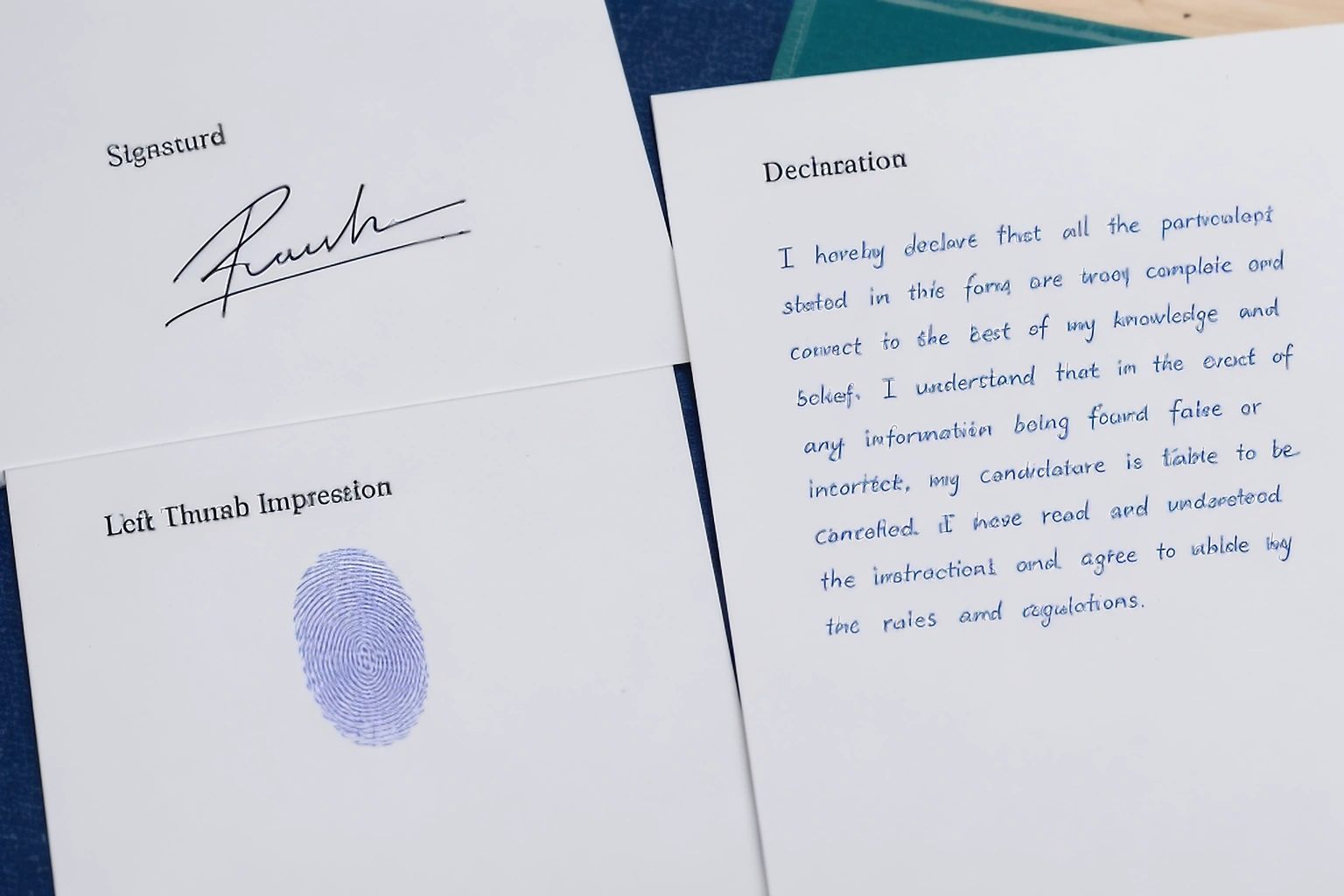
Before opening any editor, make this upload sheet
| Portal field | Source you need | Output requirement | Final check |
|---|---|---|---|
| Photograph | Clean current portrait | Notice specific | Face remains clear |
| Signature | Signature on required background | Notice specific | Strokes remain visible |
| Thumb impression | Fresh clear impression | Notice specific | Ridge detail remains visible |
| Declaration | Required sentence handwritten | Notice specific | Complete text remains readable |
Writing these values down once is faster than reopening the notice every time you switch from the photo to the signature. Add the live photograph as a portal step when the application asks for it rather than treating it as another prepared file.
Saved presets can become outdated
A file that worked for last year's examination is useful as a reference, not as proof of the current requirement. Recruitment portals can change both the files they ask for and the way photographs are captured.
IBPS's own current FAQ tells candidates who cannot upload a photograph, signature, thumb impression or handwritten declaration to follow the specifications in the relevant notification. Its FAQ also has a separate question for the live photograph requirement, which shows that the captured photo and uploaded files are treated as different parts of the application.
Save a preset only with its organisation and application year attached. A label such as “IBPS 2026 signature” is safer than a generic “bank signature” preset because you can see when it needs to be checked again.
Example: four files are ready but one still blocks submission
Imagine that an application asks for a photograph, signature, left thumb impression and handwritten declaration. The photograph uploads successfully. The signature is accepted too, but the portal rejects the thumb impression because its file size is above the stated limit.
Do not reopen all four files and compress everything again. The photograph and signature have already satisfied their fields. Return only to the clean thumb impression source, prepare a new version inside that field's published range and check that the ridge pattern is still visible.
Later, if the declaration uploads but looks blurred in the preview, replace only that file before submitting the form. This one field at a time approach reduces the chance of damaging files that were already correct.
Know when to rescan instead of compressing again
Compression is useful when the image is clear but the file is too large. It is not a repair tool for a blurry signature, smudged thumb impression or unreadable declaration.
If the source itself is poor, capture it again. A new signature scan with better lighting gives the software real handwriting to preserve, while sharpening a blurred version can create rough edges without restoring the original strokes.
The same idea applies to the photograph. If the face is blurred or hidden, use another permitted photograph or repeat the live capture instead of trying to make the rejected image look sharper artificially.
Match the error to the file
| Problem | What not to do | Better response |
|---|---|---|
| Signature is over the maximum KB | Recompress every application file | Work only on the signature |
| Signature looks faint | Compress further | Rescan or recapture it clearly |
| Thumb impression is smudged | Sharpen aggressively | Make a fresh impression |
| Declaration is clipped | Reduce the writing or crop more | Recreate the complete handwritten source |
| Live photo is dark | Upload a prepared portrait instead | Repeat the portal capture with better lighting |
A portal can reject the file before anyone sees the application
Some application systems validate the file format or size as soon as you select it. The current IBPS hosted upload guide states that an error message is displayed when the file size or format does not match the published specification.
That validation is useful, but it does not prove that the image content is good. The same guidance separately warns candidates to check whether the uploaded photograph, signature, thumb impression and declaration are clearly visible and says unclear or smudged files can lead to rejection.
Technical acceptance and visual quality therefore need separate checks.
Open every finished file once before entering the application portal
Create a small folder for the current application and open each completed file from that folder. Check the photograph at normal size, then inspect the signature, thumb impression and declaration separately. This catches problems such as a cropped signature stroke or unreadable declaration before you are under pressure inside the application portal.
Verify the file properties at the same time. A file can look fine but carry the wrong extension or sit outside the published KB range.
Use filenames that describe the asset, such as photo.jpg, signature.jpg and thumb.jpg, instead of several files called final1 and final2. The benefit appears when the browser opens its file picker and you need to select the correct document quickly.
A correct file in the wrong field is still wrong
The browser does not always know whether the image you selected is a signature or thumb impression. If two JPG files both satisfy the technical size limit, the portal can accept the wrong one initially.
Current IBPS guidance gives separate upload links for the photograph, signature, thumb impression and handwritten declaration. It also tells candidates to verify that the correct images appear in the correct places before final submission.
Check the preview after each upload rather than selecting all files quickly and assuming the filenames were enough.
Do not upload a signature you cannot reproduce later
Recruitment organisations can compare the uploaded signature with the one you make during later stages of the examination. The 2026 guidance used above explicitly says the signature can appear on the admit card and warns that a mismatch with the signature made later can result in disqualification.
This is a strong reason not to use a generated signature, a decorative text font or somebody else's handwriting for an official exam upload. Use your own normal signature and keep it consistent throughout the recruitment process.
Generated signature styles are not for official exam identity uploads
A signature made from typed text can be useful for design or informal documents, but an exam form that asks for your signature expects the applicant's own signature. When the signature can later be compared with attendance records or an admit card, use a genuine signature created by you rather than a generated style.
A handwritten declaration should be written by the applicant when the notice says it must be handwritten. Do not use a text to handwriting generator to imitate handwritten declaration text for an official recruitment application.
Where the Application Photo Pack can help
When a form requires several prepared image files, the Application Photo Pack can help organise supported photo, signature and related outputs from their separate sources. It does not replace a live camera capture, a handwritten declaration that must genuinely be handwritten or a thumb impression that must be physically provided.
| PassportPhotoBox tool | Suitable use | Do not use it for |
|---|---|---|
| Exam and Document Resizer | Preparing permitted photo or document dimensions and file size | Replacing live capture |
| Signature Resizer | Resizing a genuine applicant signature | Creating another person's signature |
| Thumb Impression Resizer | Preparing a genuine captured thumb impression | Generating a fake impression |
| Text to Handwriting | Creative handwriting output for an informal use | An official declaration that must be handwritten by the applicant |
SSC 2026 shows how exam photo workflows are changing
SSC's 2026 Selection Post Phase XIV instructions require candidates to upload a live photograph and then upload their scanned signature separately. Candidates are also told to review the application preview and check that the photograph and signature instructions have been followed before final submission.
This is another reason old “SSC photo and signature size” tutorials should not be treated as permanent instructions. The current application process itself can change how one of those assets is collected.
IBPS current 2026 context
The current IBPS 2026 Customer Service Associate application page directs candidates to the current notification, FAQs and scanning guidelines rather than treating historical upload rules as permanent. Use those linked instructions for the exact application cycle you are filling out.
The IBPS FAQ is useful for separating portal questions from file preparation questions, but the recruitment notice remains the controlling source for the values in your upload sheet.
Keep one folder for one application
Keep the clean sources, final uploads and current notice together until the form has been successfully submitted. The purpose is practical rather than archival. If the portal asks you to replace the signature tomorrow, you can return to the correct source instead of searching through several unrelated exam folders.
Save the submitted application or confirmation page as well when the authority provides one. That gives you a record of the files and details associated with that application cycle.
When the recruitment process is over, remove unnecessary identity files from shared computers or temporary folders where you no longer need them.
sometimes asked questions
Are exam photo and signature sizes the same for every exam?
No. The organisation and application cycle decide the dimensions, file size and capture method. Current recruitment systems can even require both an uploaded photograph and a separate live camera photo.
What is the correct signature size for an exam form?
There is no single size for every exam form. Use the width, height, format and KB range in the current notice. One 2026 IBPS hosted example prefers 140 × 60 pixels and asks for a 10 KB to 20 KB signature file.
Should I compress my signature below the minimum size?
No. If the notice gives a minimum, stay inside the complete range. A smaller file can lose thin strokes and still fail the portal when it drops below the published lower limit.
Can I use a digital signature generator for an exam form?
No. An official exam upload should contain your genuine signature. A generated style can be useful for creative or informal work, but it does not give you a signature you can reproduce during later recruitment stages.
Can I type the handwritten declaration?
No. When the notice asks for a handwritten declaration, write it yourself using the required wording, paper and ink. Keep the complete sentence readable in the final image.
Why does the portal accept my signature but it still looks blurred?
Portal validation can check a file type or size without judging every stroke. Open the downloaded file and inspect it at the final dimensions. If the source is faint, rescan it instead of compressing it again.
Official guidance checked for this article
Requirements can change, so use these links as the starting points for checking the current application. The page keeps the live notice above any saved preset or general guide.
For a broader digital photograph workflow, see How to Prepare a Digital Passport Photo. For signature specific work, use the signature resize guide after you have confirmed the field's current values.
Build your exam upload set
Choose the current field requirements, prepare each genuine source and keep the finished files matched to the portal.
Check the finished file before you submit it
Use the PassportPhotoBox checker to review the crop, background and saved file details against the current application instructions.