A photo with a candidate's name and photograph date can look like a normal passport size portrait with a small caption underneath. That visual similarity causes the main confusion: the text is not part of a worldwide passport photo standard.
It is an application specific format used by some recruitment boards, examinations and enrolment systems. The current notice decides whether the image stays clean, receives a digital text strip, or must be captured with identifying information already visible.
A passport photo with name and date is made for a specific application
The extra details are normally requested by an examination board, recruitment commission or another organisation that wants the photograph linked to a particular applicant and application period. A government passport or visa photograph can follow a separate identity photo rule without asking for any text underneath.
Adding text “just in case” can produce the wrong file. Read the notice and decide whether it asks for a clean portrait, a name and photograph date strip, or another capture method before opening the Name and Date tool.
The requirement can change from one application to another
| Current or recent application example | What happens with the photo? | Should you add a digital name and date strip? |
|---|---|---|
| HSSC CET 2026 | Candidate uploads a recent colour photo with a white background and the name and photograph date clearly shown | Yes, because the notice specifically asks for them |
| SSC recruitment 2026 | Application module captures the candidate's live photograph | No pre prepared photograph is required for the live capture step |
| UPSC Special Advertisement 52/2026 | Candidate uploads a photograph and also captures a live photograph in the Common Application Form | Follow the current portal instructions instead of an older template |
| Recruitment requiring a physical name board or slate | Candidate is photographed while holding the required board | No; a digitally added strip is not a substitute for the physical board |
The HSSC CET 2026 notice asks for the candidate's name and photograph date on the uploaded image. The SSC 2026 notice describes live capture and says not to photograph an existing photograph. The latest UPSC recruitment advertisement requires an uploaded photograph and live capture in the Common Application Form.
Photo instructions can change when an application portal is redesigned, so the organisation's current flow is more reliable than an old example image found in a search result.
An instruction that was correct last year can be wrong now
Recruitment photo rules can change even when the organisation remains the same. Older UPSC examination and recruitment instructions required the candidate's name and photograph date to appear on the photograph; the Commission's 2025 IES/ISS notice is one example.
The August 2026 UPSC advertisement uses the newer Common Application Form workflow, where applicants upload a photograph and capture a live photograph as well. Do not carry a saved UPSC template into a new recruitment cycle without checking the current notice.
First identify what kind of photo the form is asking for
A form asking for “passport size photograph” does not automatically mean that your name and date should appear underneath it. The extra text should come from a separate instruction in the notice, upload guidance or application portal.
Check whether the organisation asks for the candidate's name, the date the photograph was taken, a date of birth, or another identifier. These details are not interchangeable. Also check whether the information belongs in the digital image or must be physically visible when the photo is taken.
Do not confuse the photograph date with your date of birth
When a notice asks for the date of photograph, it means the date on which that particular picture was taken. It does not mean your date of birth or the day you submit the form.
Some older UPSC instructions required a photograph no more than 10 days old and asked for the candidate's name and photograph date to appear on it. The UPSC examination FAQ shows why the wording matters: the displayed date describes the image, not the applicant.
| Wording in the notice | What you should understand |
|---|---|
| Date of photograph | Date the picture was taken |
| Date of birth | Your birth date |
| Application date | Date related to submitting the form |
| Recent photograph | A photograph taken within the recency period specified by the notice |
If the notice asks for a text strip, copy its layout carefully
When the application genuinely asks for the candidate's name and photograph date below the portrait, keep the text in the portion shown by the notice or specimen image. Do not guess the spacing because another examination used a similar format.
The text should remain readable after the image reaches its final dimensions. Keep the portrait in its required proportion rather than squeezing the face to create extra space for the caption.

Do not copy pixel measurements from another recruitment form
Some recruitment authorities publish exact dimensions for the portrait and the name and date area, while others only show a specimen photograph. Those values belong to that application and should not become a permanent template for every exam.
PassportPhotoBox should help you follow the selected requirement rather than presenting one permanent text band as an official standard. If the notice gives a different layout, use the notice.
Example: HSSC CET 2026 asks for name and photograph date
The Haryana Staff Selection Commission's 2026 Common Eligibility Test notice is a current example where the extra text is genuinely required. It asks candidates to upload a scanned recent colour photograph with a white background and to make sure the candidate's name and the date on which the photograph was taken are clearly mentioned on it.
The notice lists the photograph among the required documents and repeats the name and date instruction. This is the type of request where a name and date preparation tool fits the workflow because the requirement comes directly from the recruiting authority.
Do not copy this HSSC layout into an SSC, UPSC or banking application without checking that form separately.
Example: SSC now captures the photograph live
SSC's current recruitment workflow shows why old photo templates can become obsolete. Its 2026 application module captures the candidate's photograph while the form is being completed. The applicant is told to sit or stand before the camera, use good lighting and look directly ahead.
SSC also warns candidates not to capture an image of an existing photograph. In that workflow, creating a separate image with your name and date underneath does not replace the live capture requirement. Use the application's camera when prompted.

A digital text strip cannot replace a physical slate
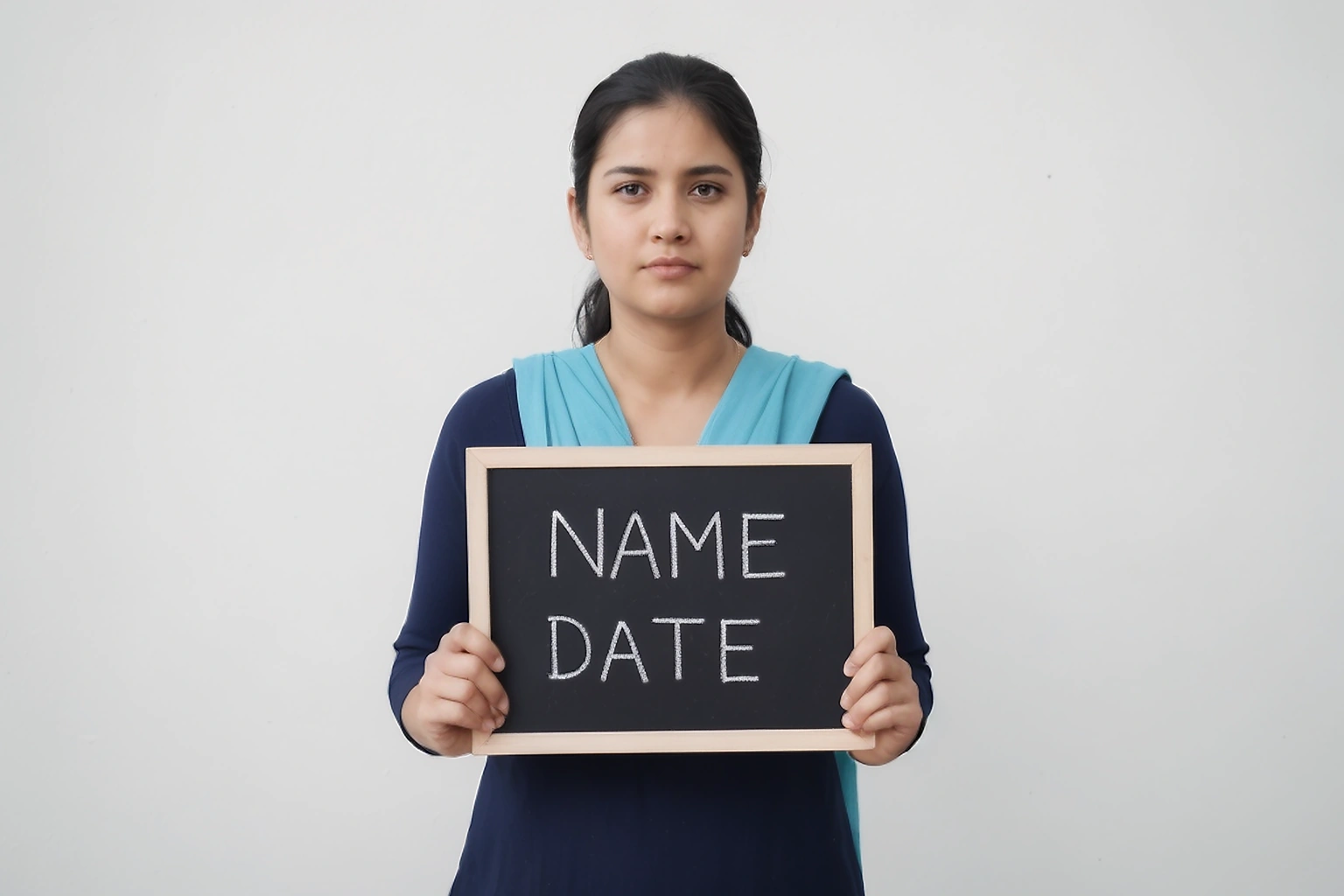
Some defence recruitment instructions use a different method: the candidate must take the photograph while holding a black slate or board showing their name and the date the photograph was taken.
Indian Navy Agniveer instructions have used this approach. The material specifies a recent colour photograph with the candidate holding a black slate in front of the chest, with the name and photograph date written clearly in white chalk in capital letters.
Adding a digital strip underneath an ordinary portrait afterward does not reproduce the instruction. The identifying information is supposed to be physically present when the photograph is captured.
Keep the clean photograph separately
Save the original portrait before creating a version that contains text. That gives you a clean source when another application asks for the same photograph without the name and date.
Do not keep editing the annotated image whenever another form uses different instructions. Start again from the clean source because removing an old strip or resizing the same small export can reduce quality. Give the two files descriptive names so the annotated version cannot be mistaken for the plain one.
Before you create the annotated version
- Confirm that the current notice actually asks for the candidate's name and photograph date.
- Copy the spelling of your name exactly as the application expects it.
- Use the date on which the photograph was taken when the notice asks for the photograph date.
- Keep the clean original so another application does not inherit text it never requested.
Example: one clean photo and two recruitment forms
Imagine you have a recent colour portrait saved on your phone. One recruitment notice asks for your name and the date the photograph was taken underneath the image. Another application uses live camera capture and does not ask you to upload that annotated file.
Keep the original portrait untouched. Create the name and date version only for the first form, then follow the live capture process for the second one. Forcing both applications to use the same output creates a mismatch between what the organisation asked you to provide and what you submit.
Think of the clean photograph as the source and each application specific version as a separate output. That approach is clearer than storing one file as my-passport-photo.jpg and using it everywhere.
A new text strip cannot make an old photograph recent
Changing the date written underneath an old photograph does not make the image newly taken. If the notice requires a recent photograph, use an image that actually falls within the stated period.
Older UPSC instructions, such as the 2025 IES/ISS notice, required a photograph no more than 10 days old while also asking candidates to display the name and photograph date. If the source is outside the period, take another photograph.
Do not change the date just to pass the form
The date under the photograph should describe the photograph honestly when that is what the notice asks for. If the image was taken on 12 August, entering 28 August because the application is being submitted that day changes the meaning of the information.
The safer workflow is to retake the photograph when the original has become too old for the current notice. That keeps the image, displayed date and application instruction consistent.
What if your full name is too long for the strip?
Do not shorten your name automatically just to make it fit. First check whether the notice asks for the full candidate name, the name as entered in the application, or another format.
If the full name is required, keep enough horizontal space for it and inspect the final image at its normal size. Avoid inventing initials when the application record contains the complete name because the difference can make the photo look inconsistent with the form.
When the official specimen cannot accommodate the required name clearly, follow the recruitment authority's help channel rather than guessing an abbreviation.
Use the date format shown in the notice when one is provided
A photograph date can be written in several valid ways, such as 21/08/2026 or 21-08-2026. Do not convert it into another style when the notice gives a specimen or fixed format.
A consistent format avoids ambiguity between day and month. Some Indian recruitment forms place the day before the month, but the actual notice should still decide the final presentation.
| Item | What to copy from |
|---|---|
| Candidate name | Application record or notice instruction |
| Photograph date | Actual date the photo was taken |
| Date format | Current notice or specimen |
| Text placement | Official example where one is provided |
Zoom out before deciding whether the text is readable
Text that looks comfortable in a full screen editor can become tiny after the image is reduced to the dimensions required by an application portal. Open the final downloaded file at its normal display size and check every letter of the name and each part of the date.
Look for clipping at the bottom edge as well. A text band that extends outside the exported canvas can lose part of the date even when the editor preview looked correct. Also confirm the final dimensions, file format and file size if the application publishes those limits.
Do not solve a crowded text area by shrinking the face unless the application layout specifically allows it. The portrait still needs to satisfy the photograph requirement.
Three very different instructions can look similar at first
| Instruction type | What it really means | Can the Name and Date tool help? |
|---|---|---|
| Text printed below the photo | Name and photograph date become part of the digital image | Yes, when the tool can reproduce the required layout |
| Live photo capture | Applicant uses the camera inside the application | No; use the official capture process |
| Physical slate or board | Name and date are already visible when the picture is taken | No; do not replace the physical board with digital text |
This distinction is why the same search phrase can lead to three different correct actions. Identify the workflow before you prepare the file.
Save the notice together with the annotated version
Keep a copy or bookmark of the instruction that required the name and date until the application is complete. If the photograph is questioned, you can see exactly which format you were following instead of trying to remember an old notice.
Give the final file a name that identifies the application rather than using photo-final.jpg. This helps when several recruitment forms are open during the same month and only one requires the text strip. Once the process is complete, delete duplicate annotated files that no longer serve a purpose, particularly on shared devices.
sometimes asked questions
Is name and date required on every passport size photo?
No. The extra text is normally an application specific requirement rather than a standard rule for every passport size photograph. Add it only when the current notice or portal asks for it.
What date should I put under the photograph?
Use the date the photograph was actually taken when the notice asks for the photograph date. Do not substitute your birth date or application submission date unless the instructions ask for something different.
Does SSC require name and date on the photo in 2026?
Current SSC recruitment applications use live photo capture in the application module. Candidates are instructed to capture themselves when prompted rather than upload a photograph of an existing photo.
Are there still applications that require name and date on a photo?
Yes. HSSC's 2026 CET notice is a current example and asks candidates to upload a recent colour photograph with the candidate's name and the date the photograph was taken clearly shown.
Can I digitally add name and date when the notice asks me to hold a slate?
No. A physical slate requirement means the name and date should be present when the photograph is taken. Digitally adding the same information afterward is a different process.
Can I change the date on an older photo?
You should not change the displayed photograph date to make an older image appear recent. If the notice has a recency limit and the image is outside it, take a new photograph.
When the Name and Date tool is actually useful
PassportPhotoBox's Name and Date tool is intended for applications that specifically require the candidate's identifying text to be included in the final image. The live tool provides candidate name and date inputs, keeps the text in a separate lower area, exposes a text size control, and exports PNG or JPG files.
It should not be used to imitate a live photograph or a recruitment photo that must be taken while holding a physical slate. Always check the current notice before creating the annotated version because the same organisation can change its photo process between application cycles.
The text is part of the application instruction, not the photograph itself
A clean portrait can be reused as a source for several applications, but the text underneath it belongs only to the form that asks for it. One recruitment notice can need your name and photograph date, another can capture your face live, and another can require a physical slate to appear in the photograph.
Keep the original photograph clean and create an annotated copy only when the current notice requires one. That small separation prevents an old recruitment format from following you into the next application.
Prepare a photo with name and date
Check the current application notice first, then add only the candidate details and date format it requests.